915 comments found.

Recently the plugin stopped working. It was working yesterday and today I was unable to add any new terms. I would hit published and it would remain as a draft. Not sure if there is now a conflict with recent wordpress updates.
Hi there,
Thank you for reaching out regarding the plugin. I’d be happy to assist you.
To proceed further, could you please provide the following details:
1. Website URL
2. Admin login URL and credentials
3. FTP credentials
Additionally, I noticed that your support period for the plugin has expired. Kindly renew your support so we can continue assisting you.
Once the support is renewed, please share the above details at wpinstinct@gmail.com, and we’ll take it forward promptly.
Kind regards, WP Instinct Team
Thanks. I just want to make sure your plugin is properly updated as it hasn’t been since August 2025. I do not need specific plugin advice that require you doing work in my site.
Yes, the plugin is fully compatible with the latest version of WordPress.
Could you please confirm whether the issue started occurring only after you updated the plugin?
Looking forward to your response. Thanks!
Hi, Thank you very much for your support, I was able to fix the issue. Great support ! Thanks !
You’re very welcome!
If you are satisfied with the plugin and the support provided, I would greatly appreciate it if you could take a moment to leave a 5-star rating on CodeCanyon: https://codecanyon.net/downloads
Your feedback means a lot and helps us continue improving our products and services.
Thank you for your support!
Dear Support, Great plugin. I couldn’t find the setting that enable to limit by SINGLE url the max number of internal links set for Glossary item. For instance in that page : https://shorturl.at/dI33z There are 26 occurence of the glossary item “melanome” but I’m interested to set a MAX. limit of internal links by page Please advise how should I proceed as I haven’t been able to see such setting throught the main setting page.
Thanks!
Hi there,
Thank you for purchasing the plugin. I’ll be happy to help you.
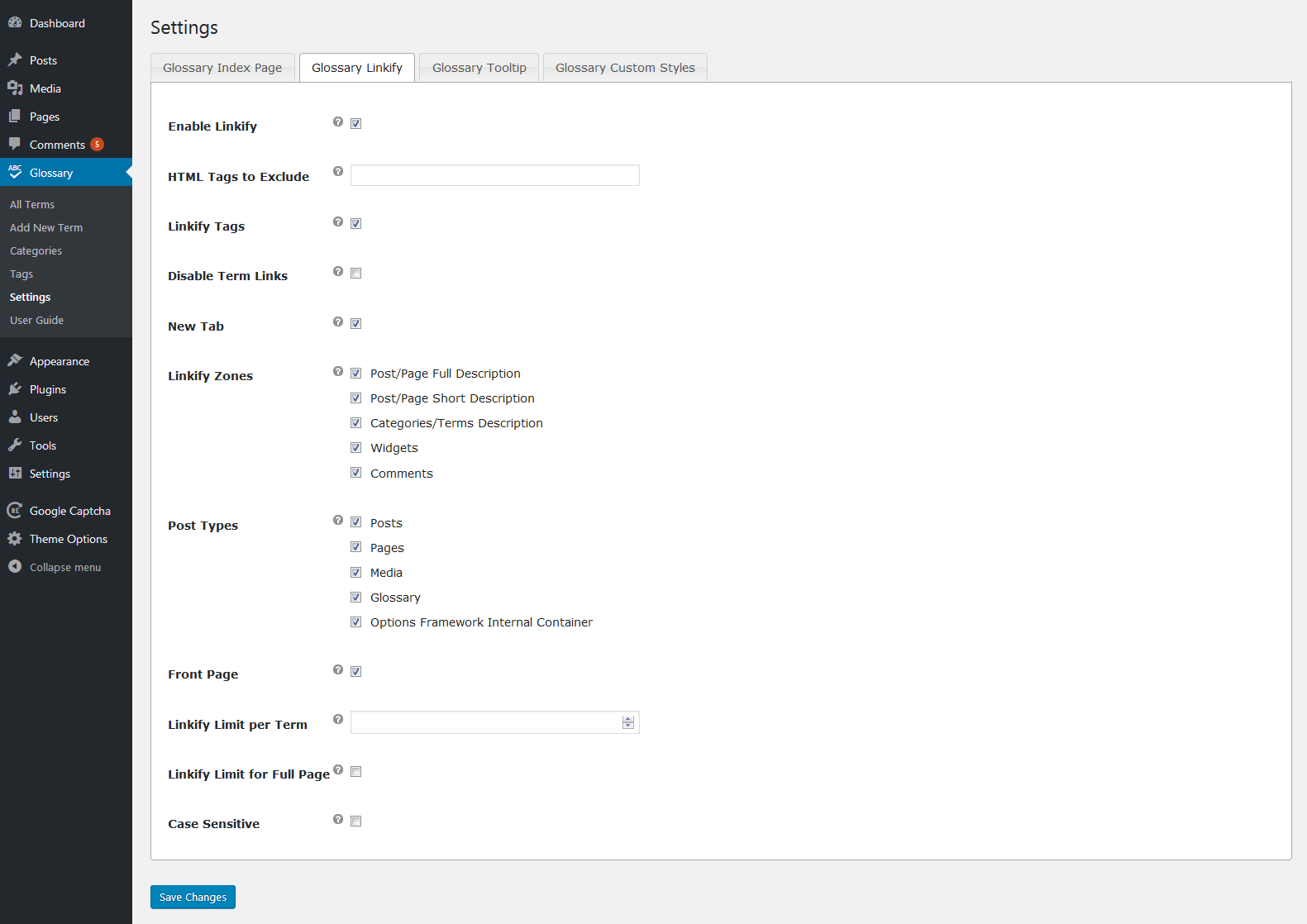
Have you tried the “Linkify Limit per Term” option available under “Glossary → Settings → Glossary Linkify” in the backend? Please set it to “1” and check if this achieves the result you are looking for.
For your reference, here is a screenshot of the settings page: https://s3.envato.com/files/645094654/screenshots/13_screenshot.png
Please let me know if you still face any issues. I’ll be happy to assist further and will wait for your feedback.
Kind regards, WP Instinct Team
i have errors:
PHP Warning: Attempt to read property “ID” on null in /wp-content/plugins/wp_glossary/includes/wpg-core-functions.php on line 852
Hi there,
Thank you for purchasing the plugin. I’ll be happy to assist you.
To help me troubleshoot and resolve the issue efficiently, please share the following details:
1. WordPress admin URL and login credentials
2. FTP access credentials
3. Screenshots and/or step-by-step instructions to help me reproduce the issue on my end
You may email these details to wpinstinct@gmail.com
Kind regards, WP Instinct Team
Hi Support, good glossary plugin. Few questions:
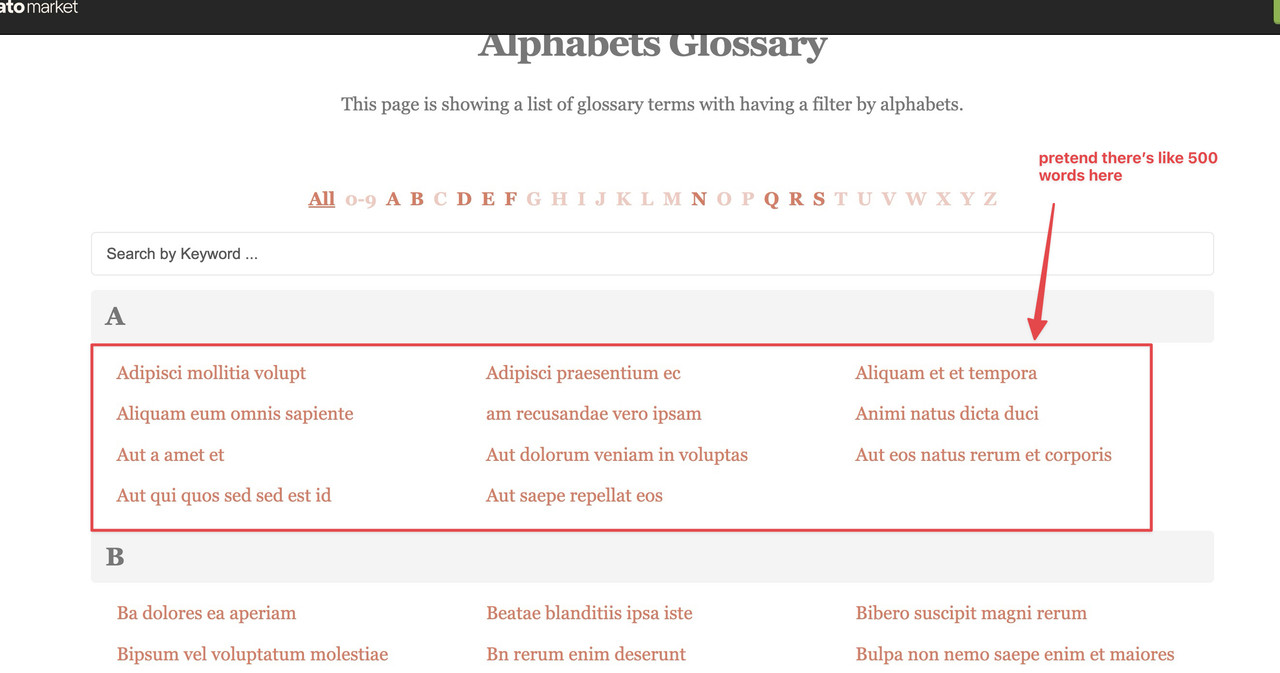
1) How does the page look if we’ve populated a cateogy with more than 100 words?
2) Can we import CSV ?
3) Can the layout on the description page be changed to something more intuitive or nicer ?
Thank you.
Hi there,
Thank you for reaching out regarding this plugin. I’d be happy to assist you.
1. Could you please clarify whether you’re referring to the category details page or the glossary term details page? Both of these pages follow your active theme’s existing structure, so their appearance will be consistent with how your website displays default categories or posts. If you’d like to customize the layout or design, you can do so by following the WordPress template hierarchy and creating the appropriate template file in your active theme.
2. At the moment, the plugin does not include a built-in import feature. However, since glossary terms are stored as a custom post type, you can use any third-party import plugin that supports importing data into custom post types. Many of our clients have successfully used the WP All Import plugin, which should work seamlessly with this setup.
3. If you’re comfortable with WordPress theme customization, you can easily customize the glossary single page by creating a file named single-glossary.php in your active theme and modifying it according to your requirements.
Please let me know if this answers your questions or if you need any further clarification.
Kind regards, WP Instinct Team
So does is do pagination or is it just a long list ? Thank you.
There is no pagination available for this particular case. All the glossary terms will be displayed into the section at once. Thanks!
Dear Team, 1st of all stunning glossary plugin, thumbs up for your awesome work!!
My site is https://horg.fr/ A few questions where I’d like to get your assistance/tips:
1) Screenshot 1: https://snipboard.io/sLhyN7.jpg Problem with “POST TITLE” under “CUSTOM ATTRIBUTE” field: If I take value marked as “A” to place it under “POST TITLE” the ‘É’ character cause the item not to appear at main index page Any solution that would enable to use special french letter also at “POST TITLE” under “CUSTOM ATTRIBUTE” field?
2) Categories Slug Currently any category created has its URL sitting under parent folder ”/glossary_cat/” Sample: https://horg.fr/glossary_cat/biologie/
I failed to find a way to edit it (I’d like to translate it into a more friendly name such as ”/dictionnaire-categorie/” Please advise
3) My Index page is https://horg.fr/dictionnaire-medical/ From the preview at https://preview.codecanyon.net/item/wp-glossary-encyclopedia-lexicon-knowledge-base-wiki-dictionary/full_screen_preview/16101768
I see Alphabets Glossary || Categories Glossary || Custom Post Type Glossary || Blog Upper links.
These links are not showing up at my index page see : https://horg.fr/dictionnaire-medical/
Please advise how I can reveal them
Thank you in advance
Best regards,
Hi there,
Thank you for purchasing the plugin. I’ll be happy to assist you.
1. I’m not entirely clear about the issue at the moment. You mentioned a “value marked as A,” however I’m unable to find anything labeled as “A” in the screenshot you shared. Could you please provide a bit more clarification so I can better understand the problem?
2. To change the glossary category slug from `glossary_cat` to `dictionnaire-categorie`, please add the following code to the `functions.php` file of your existing child theme, and let me know how it works for you:
add_filter ( 'wpg_taxonomy_glossary_cat_args', function ( $args ) {
    $args['rewrite']['slug'] = 'dictionnaire-categorie';
    return $args;
} );
3. The links labeled “Alphabets Glossary || Categories Glossary || Custom Post Type Glossary || Blog Upper” are not added by the glossary plugin itself. These belong to the top navigation. Each of these links points to a separate page, and each page contains its own glossary instance configured with different options via the glossary shortcode.
Please let me know if this helps, or if you have any further questions—I’ll be glad to assist.
Kind regards, WP Instinct Team
Thank you very much for assistance Issue 1 ended been fixed by adding manually special alphabet letters. Well noted for issues 2+3 Thanks!
Great! Please take your time, and feel free to let me know if you need any further assistance from my side.
And, if you’re happy with the plugin and our support, I would greatly appreciate it if you could leave a 5-star rating on CodeCanyon: https://codecanyon.net/downloads
Thank you!
I just purchased WP Glossary. Can I upload a csv file? If so where do I find a sample csv file with the correct headings?
Thank you, Gary
Hi there,
Thank you for purchasing this plugin. I’d be happy to assist you.
At the moment, the plugin does not include a built-in import feature. However, since it uses a custom post type for glossary terms, you can use any import plugin that supports importing data into custom post types, and it should work seamlessly with this plugin as well.
Several of our clients have had good experiences with the “WP All Import” plugin, so you may want to give that a try.
If you have any further questions or need assistance, please feel free to reach out.
Thanks & regards, WP Instinct Team
Is this plugin compatible with the Gutenberg-”method”, or block-themes in general?
I’m having issues…
Hi there,
Thank you for purchasing the plugin. I’ll be happy to assist you.
The plugin is fully compatible with the Gutenberg editor. Could you please let me know the exact issue you are experiencing?
To help me troubleshoot and resolve the issue efficiently, please share the following details:
1. WordPress admin URL and login credentials
2. FTP access credentials
3. Screenshots and/or step-by-step instructions to help me reproduce the issue on my end
You may email these details to wpinstinct@gmail.com
Kind regards, WP Instinct Team
“Hello! I’m facing an issue: when adding the tag “убеждённость” in the glossary, the letter “ё” automatically changes to “е” after updating, although this doesn’t happen with other tags like “ёлки”. Could you please advise where to find the settings to fix this?”
Subject: Critical Issue: Russian character ‘Ё’ automatically converted to ‘Е’ in Glossary Tags (Taxonomy Slugs)
Dear Support Team,
I am experiencing a issue when adding terms (tags) to the `glossary_tag` taxonomy (Glossary Tags) using the administrative interface.
When I create a new tag with a Russian word containing the character ‘Ё’ (Yo), the system automatically converts this character to ‘Е’ (Ye) upon saving.
Example: 1. I enter the tag name: `убеждённость` (ubyezhdyónnost’) 2. The term is saved, and its title remains `убеждённость`. 3. However, the term’s slug (URL-friendly name) is incorrectly generated using ‘Е’, resulting in a slug like `ubezhdennost` instead of the correct transliteration.
This issue specifically affects words where ‘Ё’ appears in the middle (e.g., `убеждённость`), but not necessarily when it appears elsewhere (e.g., the word `ёлка` (yólka) seems to be saved correctly).
This suggests a problem with the transliteration function the plugin or WordPress is using to generate the slug from the Russian tag name.
Could you please provide guidance on which specific file or filter handles the slug generation for the `glossary_tag` taxonomy, so I can investigate or resolve the incorrect ‘Ё’ to ‘Е’ mapping in the transliteration process?
Thank you for your assistance.
Hi there,
Thank you for reaching out to me regarding this plugin. I’d be happy to assist you.
To ensure a smooth discussion, could you please provide the following details:
1. A screenshot from https://codecanyon.net/downloads showing the CodeCanyon purchase code and the effective support date for this plugin
2. Your website URL
3. Admin URL and login details
4. FTP credentials
5. The steps required to replicate the issue on my end
You can email the requested details at wpinstinct@gmail.com
Kind regards, WP Instinct Team
Hello, I purchased your plugin and installed it on my website https://www.web-napoli.it/
I immediately encountered a problem. To speed up sites for Core Web Vitals, we use WP Rocket at our agency, which we’re very happy with. Once I activated your plugin, I started experiencing issues: in particular, the tooltips don’t display when I hover over them. Could you tell me how I can modify the WP Rocket setup to use your plugin?
Awaiting your kind reply, best regards.
Alessandro
Hi Alessandro,
Thank you for purchasing the plugin. I’ll be happy to assist you.
To help me troubleshoot the issue and fix it efficiently, could you please share the following details:
1. WP Admin URL and login details
2. FTP credentials
3. A few screenshots or step-by-step instructions showing how I can reproduce the issue on my end
You can email these details to wpinstinct@gmail.com
Kind regards, WP Instinct Team
Email send!
Replied! Please check.
Hi guys,
I spoke with WP Rocket support, as you suggested in the various support tickets you sent us.
They fixed the problem; it was a conflict with their plugin’s function: Remove unused CSS.
But your support was also really helpful! Thank you so much and Happy 2026!
That sounds great!
If you are satisfied with my plugin and support, I would greatly appreciate a 5-star rating. If you have already left a review, please feel free to ignore this request. You can submit your rating here: https://codecanyon.net/downloads
And thank you very much, wishing you a Happy 2026 as well!
Hi, I bought the WP Glossary and I have a question:
Can I put the label “all” on a different line (above the A B C…) so that the two options are separated on individual lines?
Best regards, Joerg
Hi Joerg,
Thank you for purchasing the plugin — I’d be happy to help you.
There isn’t a direct way to display the “All” label in a different position. However, if you could explain where and how you’d like it to appear, I can look into creating a custom solution for you.
Please share your website URL and a few reference screenshots at wpinstinct@gmail.com so I can better understand your requirement.
Best regards, WP Instinct Team
Hi, do you have a Demo from WP Glossary. I want to test it on my Homepgae before buying.
Hi there,
Thank you for your interest in our plugin — we truly appreciate it. I’d be glad to assist you with any questions you may have.
You can explore the live demo here: https://glossary.wpinstinct.com/
If you have any questions or need further clarification about how the plugin works, feel free to reach out at wpinstinct@gmail.com
Best regards, WP Instinct Team
Hello can you fix this notice ? https://prnt.sc/iEl1Rj1nsF2A It is very annoying Regards Leonidas
Hi there,
Thanks for purchasing this plugin. I would be happy to help you.
=======================
Please try following these steps and let me know how it goes:
1. Connect FTP
2. Go to: wp-content/plugins/wp_glossary/includes/
3. Edi File: class-wpg-linkify.php
4. Search for: mb_convert_encoding( $content, ‘HTML-ENTITIES’, “UTF-8” )
5. Replace it with: htmlentities( $content, ENT_QUOTES | ENT_SUBSTITUTE, ‘UTF-8’ )
6. Now refresh your website and see if everything works as expected or you still see anything wrong there.
=======================
In case it fails to work, please provide me following details so that I can troubleshoot it further and can fix it for you:
1. Website URL where I can see these warnings
2. Admin URL and login details
3. FTP credentials
You can email these details at wpinstinct@gmail.com
=======================
Thanks, WP Instinct Team
Hi I replied to wpinstinct@gmail.com
Replied, please check. Thanks!
The plugin cannot be installed in my version of WordPress (AVADA)
Das Plugin wird von der hochgeladenen Datei codecanyon-3rxrZ2dM-wp-glossary-encyclopedia-lexicon-knowledge-base-wiki-dictionary.zip installiert Entpacken des Pakets …
Das Plugin wird installiert …
Das Paket konnte nicht installiert werden. Es wurden keine gültigen Plugins gefunden.
Die Plugin-Installation ist fehlgeschlagen.
3103ba2e-62e0-4024-af75-c015a7b69b6f – 15 Oct 2025
Oh, I just read yesterday’s reply. It works, thank you!
Great! Please let me know if you still need my help anywhere.
Thanks, WP Instinct Team
I am unable to install the WP Glossary – Encyclopedia/Lexicon/Knowledge Base/Wiki/Dictionary plugin. After uploading the ZIP file, the following message appears: Unpacking the package… The plugin is being installed… The package could not be installed. No valid plugins were found. The plugin installation failed.
Hi there,
Thanks for purchasing this plugin. I would be happy to help you.
Please follow these steps and let me know if you still face any issue:
1. Download the plugin file from CodeCanyon: https://codecanyon.net/downloads

2. Extract / Unzip it.

3. Go into the extracted directory.

4. Find another zip file there.

5. Try to install this zip file and let me know if you still face any issue.
I will wait for your feedback.
Thanks, WP Instinct Team
Found another thing which needs to be adressed by dev… the plugin still loads the stone old and outdated mixitup.js. Could you please migrate to the actual version? Without the actual version every site with the plugin will affect Pagespeed (i.e. Google) in a negative way.
Hi there,
Thanks for purchasing this plugin. I would be happy to help you.
Thanks for bringing this in my notice. I have added this to my notes and will surely update this library in next release. It may take some time but I will try my best to get it in action as soon as possible.
Thanks, WP Instinct Team
Hi, bought the plugin and everything runs fine except linking the available terms on pages. No terms are linked. I am using Breakdance builder for the pages (posts are done with standard Gutenberg and there it works as intended). Can you provide a CSS/Code snippet or have any other idea?
Hi there,
Thanks for purchasing this plugin. I would be happy to help you.
Please provide me following details so that I can troubleshoot the reason and fix it for you:
1. Glossary page URL
2. Admin URL and login details
3. FTP credentials
4. Steps or screenshots along with URLs by following which I can see the issue on my end
You can email these requested details at wpinstinct@gmail.com
Thanks, WP Instinct Team
Hi I have your glossary, encyclopedia plugin on one of my websites but I’m closing that site down. - Am I alright to switch your plugin to another website or do I need to give you the details of the new site that I’m switching the plugin to first? Thanks, Jeff
Hi Jeff,
Thanks for purchasing this plugin. I would be happy to help you.
You can use the same license for another website while you keep it active only for one website at one time. If you want to use it for more than one websites at the same time, only that time I would suggest you to keep an independent license for each of the websites.
I hope it helps 
Thanks, WP Instinct Team
Hello,
A presale question does the Plugin offers a refund policy after it has been bought?
I want to test it firstly.
Hi there,
Thanks for reaching out to me regarding this plugin. I would be happy to assist you.
You can get a refund for this plugin only if it doesn’t work on your website for the features mentioned in plugin description. If you want to see how this plugin actually works before you purchase it, please contact me at wpinstinct@gmail.com and I will show it to you.
Thanks, WP Instinct Team
Hello there,
I hope this finds you well. I purchased your plugin some months back, and yet to launch the website.
Initially, I set out to use the alphabetic template, which worked fine, and as the project progressed, we needed to add the glossary for taxonomies on separate pages.
In a nutshell, the taxonomies for this plugin aren’t working, and it is frustrating that I am discovering this at this point.
I thought this could be rectified by an update, but I don’t think there seems to be any. Is this something you could please rectify?
- Site is built with Elementor & ACF.
- I use shortcodes to display the glossary on the frontend of the site.
- Glossary for Custom Posts appears correctly since inception.
- Glossary for taxonomies does not load any term/keyword, even after following the detailed guides. We believe there is an inherent issue but await your response.
Best.
Hi there,
Thanks for purchasing this plugin. I would be happy to help you.
Are you looking to display something like this ( Categories filter on top and then posts under each category at bottom ): https://glossary.wpinstinct.com/categories-glossary/ ?
If yes, please share the full shortcode you are trying to use in order to show the taxonomies glossary so that I can look into it and can guide you in correct direction.
Thanks, WP Instinct Team
Thanks for getting back to me on this. Quite honestly, this is a good approach (https://glossary.wpinstinct.com/categories-glossary/).
However, what we have in mind is to have our terms from a particular category (taxonomy) on a page.
We have 3 custom post types, and our goal is to group terms in the posts using taxonomies. We want each taxonomy to have its own page.
For instance, we have custom post types A,B,C that have taxonomies X,Y,Z. We want the shortcode to show the glossary of X on a specific page, Y on another page, and Z on its own page.
Already, the shortcode we are using works fine for the 3 custom post types, i.e, page 1 displays glossary of custom post type A, page 2 displays glossary of custom post type B, and page 3 displays glossary of custom post type C, correctly.
But we want another set of pages, i.e pages 4,5, 6 to display taxonomy X,Y,Z.
Here is one of the shortcodes that works fine for the custom post types:
[wpg_list title=”” layout=”three_column” alphabet_set=”” hide_empty=”yes” hide_all=”no” hide_numeric=”no” post_type=”english” template=”alphabet” taxonomy=”” taxonomy_terms_to_include=”” taxonomy_terms_to_exclude=”” uncategorized_term_name=”“]
And here are some variants of the shortcode that don’t load anything regardless of the custom post type added:
1. [wpg_list title=”” layout=”three_column” alphabet_set=”” hide_empty=”yes” hide_all=”no” hide_numeric=”no” post_type=”glossary” template=”category” taxonomy=”glossary_cat” taxonomy_terms_to_include=”” taxonomy_terms_to_exclude=”” uncategorized_term_name=”“]
2. [wpg_list title=”” layout=”three_column” alphabet_set=”” hide_empty=”yes” hide_all=”no” hide_numeric=”no” post_type=”english” template=”alphabet” taxonomy=”” taxonomy_terms_to_include=”” taxonomy_terms_to_exclude=”” uncategorized_term_name=”“]
3. [wpg_list title=”” layout=”three_column” alphabet_set=”” hide_empty=”yes” hide_all=”no” hide_numeric=”no” post_type=”english” template=”alphabet” taxonomy=”sectors” taxonomy_terms_to_include=”” taxonomy_terms_to_exclude=”” uncategorized_term_name=”“]
4. [wpg_list title=”” layout=”three_column” alphabet_set=”” hide_empty=”yes” hide_all=”no” hide_numeric=”no” post_type=”english” template=”category” taxonomy=”sectors” taxonomy_terms_to_include=”” taxonomy_terms_to_exclude=”” uncategorized_term_name=”“]
I have played around with the post type, template, & taxonomy lines.
I hope this is detailed enough to assist me here. Once again, I appreciate you looking into this.
Best.
Hi, thanks for sharing more details.
Basically you want to show the posts for a specific post type on a glossary index page. This is the correct shortcode:
[wpg_list post_type="english" taxonomy="{NAME_OF_TAXONOMY}" taxonomy_terms_to_include="{ID_OF_TAXONOMY_TERM}"]
Replace {NAME_OF_TAXONOMY} and {ID_OF_TAXONOMY_TERM} with correct values.
Or if you provide me your website URL with backend login details, I can try to provide you exact shortcode which should work. You can provide me your website details at wpinstinct@gmail.com if you want me to look into it further.
Thanks!
Hello, once again.
I tried this, and this worked. Interestingly, I happened to figure out the shortcode on the plugin settings guide, which I tried earlier. Thanks for your help.
Just to be sure, does the glossary plugin support frontend logic to dynamically decide “which field is the source term? I couldn’t find anything related to that on the plugin details page….
Here is more context-
Due to the ease of managing all our terms (4K+ right now), we decided to bulk import and export terms. This way, we can easily manage them using a spreadsheet (.xlsx) file.
But we noticed that having 3 CPTs (for the 3 language glossaries we operate) leaves us with 3 different spreadsheets.
The goal is to export our terms into one single spreadsheet to help us manage all terms with ease, since the languages are direct translations of each other. (That means that we will have just one post with the 3 different languages as custom fields).
Our spreadsheet would be flat and look like:
| Lang 1 Term | Lang 2 Term | Lang 3 Term | Definition (Lang 1) | Definition (Lang 2) | Definition (Lang 3) |
| |
|
|
|
|
|
And we want to do all translations ourselves instead of using a translation plugin or AI.If we proceed with exporting all terms according to their CPT, we will have a hard time matching each term while exporting and importing back to the site would be challenging too..
And if we decide to collapse all 3 CPTs into one (or use the default glossary CPT), then we will achieve our goal of having the terms in one spreadsheet. However, this poses an issue on the frontend. It would require that the Glossary plugin uses a front-end logic to dynamically point to a term as the source term and the other languages as the target term…
For instance, how do we select Lang 1 terms on a particular page as the Glossary terms/source terms, while Lang 2 and 3 become the description/post content/target terms?
Do you have a solution for this, or an add-on, or a different plugin? I can give you more details if necessary.
Hi there,
For this I would require your website details once to see how it currently works and what exactly you want. Please provide me following details so that I can look further into it:
1. Your website URL
2. Admin URL and login details
3. FTP credentials
4. A few steps including URLs or a few screenshots explaining more about your requirements.
5. And please make sure to renew the support for this plugin for a smooth discussion.
Thanks!