248 comments found.
Hello Support, i have been using the bookly calendar app for over a year now, but i get this error:
Google Calendar: Error refreshing the OAuth2 token, message: ‘{ “error”: “invalid_grant”, “error_description”: “Bad Request” }’
how can i fix this please
Hello,
Thank you for your message.
Please make sure that your application is published https://prnt.sc/eQHjCRDVUzWV After that, please disconnect your staff member from Google Calendar and connect once again.
Thanks!
Yulia
Like us?
Rate us!
High rating = More sales = More functions and flexibility
===
Documentation |
FAQ |
Feature Requests |
Video Tutorials

Hello, Can I use this plugin to create several different Google Calendar links depending on the location chosen by the customer?
For example, a customer chooses the “New York” location, so the administrator set to the New York location will receive the reservation on his calendar?
The aim is to have a single calendar per administrator.
Alternatively, it’s not possible to set up a single calendar covering all reservations.
Hello,
Thanks for reaching out.
Please note that Google Calendar is synced to a staff member’s Bookly Calendar. And staff members are assigned to locations.
You can integrate Bookly PRO with Google Calendar so that all new bookings created in Bookly Calendar will be automatically copied to the Google Calendar or vice versa. When you’re finished configuring the settings, you can then enable the connection to synchronize each staff member’s appointments with Google Calendar. This default integration included in Bookly Pro offers two types of synchronization modes – One-way and Two-way front-end only.
The One-way type of sync will display your Bookly appointments in Google Calendar.
Whereas with the “Two-way front-end only” sync mode, your Google Calendar events will be taken into account when offering available time slots to clients in your booking form. If you enable this type of sync, all updates in Bookly will automatically appear in your Google Calendar – this means that the events that were created in Google Calendar will not be copied and displayed in your Bookly Calendar. Still, Bookly will consider this time slot as busy and won’t be available for booking in your front-end booking form. And all changes will affect the new appointments only so all existing appointments won’t be changed. However, with this type of sync, Bookly ignores all Google events created via Bookly since it is made to optimize the time to fetch events from Google. So each time a customer goes to the ‘time’ step of the booking form, Bookly sends a request to Google like: “Hey Google, send me all events from the staff Google calendar except events with the hidden field ‘created by Bookly’ because I already know about them from my Bookly calendar!”
Please check this article: https://support.booking-wp-plugin.com/hc/en-us/articles/203572552-Google-Calendar-Sync for more information and instructions regarding Google Calendar sync and these two types of synchronization modes.
However, if you need a full two-way synchronization between two (Bookly and Google Calendar) calendars, please check the Bookly Advanced Google Calendar Add-on: https://support.booking-wp-plugin.com/hc/en-us/articles/360005100854-Advanced-Google-Calendar-Add-on as it allows you to keep all your Bookly calendar data and any further schedule updates in sync with Google Calendar. So all bookings created or updated in Bookly Calendar will be automatically reflected in the Google Calendar, and vice versa. Please note that when you create All day event in Google Calendar, its status is set to Free by default, hence, you should change its status to Busy to display this event in Bookly Calendar.
The Bookly Locations Add-on: https://support.booking-wp-plugin.com/hc/en-us/articles/210229885-Locations-Add-on works with this requirement. Unlike other setups that use categories as locations, this add-on allows you to manage multiple locations where you provide your services. The features are:
- associate employees with different locations
- let clients choose locations for their visits
- allows you to keep different types of services categorized into groups
- have staff migrate between locations (such as services provided at home and grouped into locations by neighborhood, etc.)
- different services, pricing, and schedule for each staff member for various locations (when ‘Custom settings for location’ is enabled in the “Bookly > Settings > Locations” section)
As regards notifications, the staff member booked for the service and, if selected, WordPress administrators and any custom email addresses will receive notifications regarding the appointment. There are several types of triggered and scheduled notifications you can set up via Bookly to keep clients and staff in the loop of appointment status updates and remind them of upcoming events. Please have a look at these articles for more information and instructions.
- Notifications Overview: https://support.booking-wp-plugin.com/hc/en-us/articles/212411249-Notifications-Overview
- Set Up Emails: https://support.booking-wp-plugin.com/hc/en-us/articles/212997905-Set-Up-Emails
- Customize Notifications: https://support.booking-wp-plugin.com/hc/en-us/articles/212411309-Customize-Notifications
- Email and SMS Notifications Video: https://support.booking-wp-plugin.com/hc/en-us/articles/360008526140-Email-and-SMS-Notifications
- Set Up Text Messages (SMS): https://support.booking-wp-plugin.com/hc/en-us/articles/212411289-Set-Up-Text-Messages-SMS-
- Text Message (SMS) Rates: https://support.booking-wp-plugin.com/hc/en-us/articles/212997925-Text-Message-SMS-Rates
- Voice Notifications: https://support.booking-wp-plugin.com/hc/en-us/articles/8594761417746-Voice-Notifications
- WhatsApp Notifications: https://support.booking-wp-plugin.com/hc/en-us/articles/10053650125202-WhatsApp-Notifications
- How to configure CRON to send scheduled Bookly reminders: https://support.booking-wp-plugin.com/hc/en-us/articles/360015017400-How-can-I-configure-CRON-to-send-the-Bookly-reminders-
As you may already know, Bookly is designed to work with a weekly schedule. The schedules you set up for the staff members are their consistent availability moving forward – for each and every week. So timeslots offered in the front-end booking form are founded on these schedules. And the time slot interval or how the hours are divided and presented in the booking form is based on the time slot length. The add-ons https://www.booking-wp-plugin.com/features/, such as Bookly Advanced Google Calendar Add-on and Bookly Locations Add-on, are intended to help give more flexibility to achieve desired features.
I would recommend that you please check the demos:
- https://www.booking-wp-plugin.com/demo/advanced-google-calendar/
- https://www.booking-wp-plugin.com/demo/locations/
OR try the sandbox on a live website to have a better understanding of how Bookly Pro, Bookly Advanced Google Calendar Add-on, and Bookly Locations Add-on work together and be able to discern if Bookly products fit your business needs. To access the sandbox mode, please go to https://www.booking-wp-plugin.com/demo-list/, add your email address, click on the “Configure” button, and then follow the rest of the steps you’ll receive in your mail.
If I am off-base, you need additional help or have additional questions/clarifications about this, please email us at sales@bookly.info and mention Ticket #281057 so we can look into this matter for you.
Many thanks,
Richel
Like us? Rate us!
High rating = More sales = More functions and flexibility
===
Documentation |
FAQ |
Feature Requests |
Video Tutorials
Another question :- If i purchase bookly pro then is their any feature that new appoinment is showing on admin’s google calender while any customer book their appointment..?
Hello,
Thank you for your message
Bookly Pro already includes the following synchronization options:
- One-way sync
- Two-way front-end only
For more details check this guide: https://support.booking-wp-plugin.com/hc/en-us/articles/203572552-Google-Calendar-Sync
If you would like to have all appointments (for all staff member) to another like external calendar, there’s a separate feature for it.
Thanks!
Alex
Like us?
Rate us!
High rating = More sales = More functions and flexibility
===
Documentation |
FAQ |
Feature Requests |
Video Tutorials
Hello my name is hardik Yesterday i have purchased (Advanced Google Calendar Add-on) plugin during setup that is showing i need bookly pro version for that now i decide i have to revert this product. now that should do please let me know.
Hello,
Thank you for your message
You need Bookly Pro if you would like to use any of available add-ons.
If no longer need this add-on, you can open a refund request: https://help.market.envato.com/hc/en-us/articles/202821460-Can-I-Get-A-Refund-
Thanks!
Alex
Like us?
Rate us!
High rating = More sales = More functions and flexibility
===
Documentation |
FAQ |
Feature Requests |
Video Tutorials
Hi, I’m using you plugin here: https://www.occhialeriadicesare.it/prenota-un-appuntamento/
But when send form, spends a lot of time to display thankyou page, about 30 seconds.
So why? Alice
Hi Alice,
Thank you for your message
Please follow the link below to create a support ticket, so we can look into this matter.
Click Here To Get Bookly Support
Thanks!
Yulia
Like us?
Rate us!
High rating = More sales = More functions and flexibility
===
Documentation |
FAQ |
Feature Requests |
Video Tutorials
Hello,
I just bought the add-on. I don’t fully understand how to configure it.
What I’d like: - Bookly should know if a spot is available or not on staff’s Google Calendar; if it’s busy because of a booking or any kind of private event the staff has, booking isn’t open, - if I update a booking on Bookly, change is made on Google Calendar as well, - I don’t want to be able to see or change any event on Google Calendar that has not been created by Bookly.
The last point is about privacy. I tried with 3-way sync and I can see on Bookly all the events created on Google Calendar. I don’t want to see this and I don’t want to be able to change it.
How should I configure Bookly?
Hello,
Thank you for your message.
I advise to check the 2 way front-end only synchronization option. If you enable this type of sync, all updates in Bookly will automatically appear in your Google Calendar. Events that were initially created in Google Calendar will not be copied and displayed in your Bookly Calendar. Google Calendar events will be taken into account when offering available time slots to clients in your booking form. So if you have an event in Google Calendar, then the corresponding time slot won’t be available for booking because Bookly will consider this time slot as busy.
Please note that it can take some time to sync all appointments between two calendars which can result in a delay when loading the Time step in a booking form. We recommend that you limit the number of fetched events related to this feature as too many events in Google calendar may lead to a lack of memory in PHP when Bookly tries to fetch all events.
Thanks!
Alex
Like us?
Rate us!
High rating = More sales = More functions and flexibility
===
Documentation |
FAQ |
Feature Requests |
Video Tutorials
How do I use the “Custom service price” field of the appointment created with Google Calendar?
Can a value be set for that field from Google Calendar? Is this field used later in some way to manage the payment?
Hello,
Thank you for your message.
Not quite sure that understood you correctly. You can use the same shortcode {service_price} in Settings – Google calendar:
https://prnt.sc/vVRM4kwynDCRThanks!
Kate
Like us?
Rate us!
High rating = More sales = More functions and flexibility
===
Documentation |
FAQ |
Feature Requests |
Video Tutorials
When an appointment is created from Google Calendar. In the appointment there is the field “Custom service price”.
What is it for and how is this field used?
Hello,
This field is not related to the synchronization functionality, it just happens that these events will create appointments with a custom service.
The purpose of custom service option is to be able to add manually and simpler/easier some service that is not included in the available service list. For example, if a company has made some special customization for a car, that is not included in the price list. They agreed upon a price and this appointment was added in the back-end with a custom service and custom price.
Thanks!
Alex
Like us?
Rate us!
High rating = More sales = More functions and flexibility
===
Documentation |
FAQ |
Feature Requests |
Video Tutorials
Thank you very much for the clarifications.
I’m testing the plugin with the Sandbox demo  but…
but…
I can’t get the Template for event title and Template for event description codes to work
Whatever you put in the Template for event title field always interprets it as {service_name} (it happens to be what I put in the first test). From the description of Google Calendar I have not been able to import a single piece of data.
What exactly is {client_names}? Is it the same as {participant.client_name} ? {client_names} does not exist at https://support.booking-wp-plugin.com/hc/en-us/articles/213066885-All-Placeholders
In Google Calendar I have put:
In the title field: Jiminy Cricket
In the description:
Service: SERVICE NAME
Name: Pepito
Email: PepitoGrillo@gmail.com
Phone: 667666
In the Bookly configuration I have put:
Template for event title: {service_name}
Service: {service_name}
{#each participant as participant}
Name: {participant.client_name}
Email: {participant.client_email}
Phone: {participant.client_phone}
{/each}
Date: {appointment_date}
Time: {appointment_time}
Remarks: {appointment_notes}
Bookly creates a reservation with the data:
Service: Jiminy Cricket
Customer name: N/A
Customer phone: N/A
Customer email: N/A
Hello,
Thank you for your message.
For the template event title only the following codes are supported: {service_name}, {category_name}, {staff_name} and {client_names}. Yes {client_names} code will return the customers’ names. Regarding the template for event description you need to start typing to add new codes, please note that codes aren’t global and won’t work everywhere you add them (even if you copy paste them). Also these templates will return the data from Bookly to Google calendar, not the other way around. Manually added events in Google calendar will only create appointments with a custom service in Bookly’s calendar.
Thanks!
Alex
Like us?
Rate us!
High rating = More sales = More functions and flexibility
===
Documentation |
FAQ |
Feature Requests |
Video Tutorials
Thank you very much for your answer!
So, no Google calendar event description data is imported. Only the Google Calendar event title is imported in the “Custom service name” field.
I haven’t seen that information in the documentation. If it is not there, I encourage you to include it
Hello,
Thank you for your message.
You can import the data with the help of shortcodes in Settings – Google Calendar:
https://prnt.sc/f0qVqV0bZnd-Thanks!
Kate
Like us?
Rate us!
High rating = More sales = More functions and flexibility
===
Documentation |
FAQ |
Feature Requests |
Video Tutorials
before you said “these templates will return the data from Bookly to Google calendar, not the other way around” now “You can import the data”.
The answers say the opposite. Which is the right answer?
Hello,
My colleague meant to say that Bookly data can be exported to the synchronized Google Calendar events by using various codes.
Thanks!
Alex
Like us?
Rate us!
High rating = More sales = More functions and flexibility
===
Documentation |
FAQ |
Feature Requests |
Video Tutorials
How can reservations for 2 different services be created using Google Calendar and that the corresponding time slot is no longer available in each of them independently?
Can you sync with more than one Google calendar?
Or is this functionality only good for a single service?
Hello,
Thank you for your message.
Google calendar synchronization works with your staff members: https://support.booking-wp-plugin.com/hc/en-us/articles/203572552-Google-Calendar-Sync
So you can can connect all your staff members to Google calendar. But you can choose only one calendar per staff member.
Thanks!
Kate
Like us?
Rate us!
High rating = More sales = More functions and flexibility
===
Documentation |
FAQ |
Feature Requests |
Video Tutorials
How can I make each worker have their Google calendar? I only have one Google calendar, I haven’t seen how to create more than one
Hello,
Thank you for your message.
When you go to Staff members section, you can choose Google account for the connection and after that you can choose the calendar.
But you can choose only one calendar per staff member.
Thanks!
Kate
Like us?
Rate us!
High rating = More sales = More functions and flexibility
===
Documentation |
FAQ |
Feature Requests |
Video Tutorials
Thank you very much for your reply. How can I have more than one Google API Calendar per Google Account?
Hello,
You need to only one set of API keys to set up the synchronization, if you meant is possible to connect multiple calendars to the same staff member, then this feature is not yet supported.
Thanks!
Alex
Like us?
Rate us!
High rating = More sales = More functions and flexibility
===
Documentation |
FAQ |
Feature Requests |
Video Tutorials
Thank you very much for your reply.
I have a single Google calendar and multiple workers. How can I create a separate Google calendar for each worker? In Bookly, in the worker’s calendar dropdown, I only get 1.
Hello,
Thank you for your message.
You need to create several calendars in Google Calendar first:
https://prnt.sc/0G_8bghcXXWxAfter that, you can choose the calendar from drop-down menu.
Thanks!
Kate
Like us?
Rate us!
High rating = More sales = More functions and flexibility
===
Documentation |
FAQ |
Feature Requests |
Video Tutorials
Thank you very much for your attention. Excuse my stupid question. I thought there was a special API calendar.
Hello,
Thank you for your reply.
No problems.
Let us know if you need our assistance.
Thanks!
Kate
Like us?
Rate us!
High rating = More sales = More functions and flexibility
===
Documentation |
FAQ |
Feature Requests |
Video Tutorials
How can I know which reservations come from Google Calendar?
In the screenshots and in the demo I am not able to differentiate them.
In the demo I can see orders that do not have an assigned payment. Have these orders been created using Google Calendar?
Hello,
Thank you for your message.
These appointments will be with a custom service and no payment details. You can test this functionality by registering for a sandbox website.
Thanks!
Alex
Like us?
Rate us!
High rating = More sales = More functions and flexibility
===
Documentation |
FAQ |
Feature Requests |
Video Tutorials
When an appointment is created in Google Calendar, does this plugin perform some type of management with the payment? Is there a way to sync appointments created in Google Calendar with WooCommerce?
Hello,
Thank you for your message.
When an event is created in Google calendar and the 2 way synchronization is enabled an appointment for the same time slot will be created that will have a custom service. Appointments that are created in Bookly will be synchronized to the connected calendars automatically, regardless of what payment option is being used.
Thanks!
Alex
Like us?
Rate us!
High rating = More sales = More functions and flexibility
===
Documentation |
FAQ |
Feature Requests |
Video Tutorials
Thank you very much for your quick response
Is there a way to checkout after creating a reservation using Google Calendar?
Hello,
This feature is not supported now, customers can pay for an appointment only on the front-end while using the booking form.
Thanks!
Alex
Like us?
Rate us!
High rating = More sales = More functions and flexibility
===
Documentation |
FAQ |
Feature Requests |
Video Tutorials
Hello again,
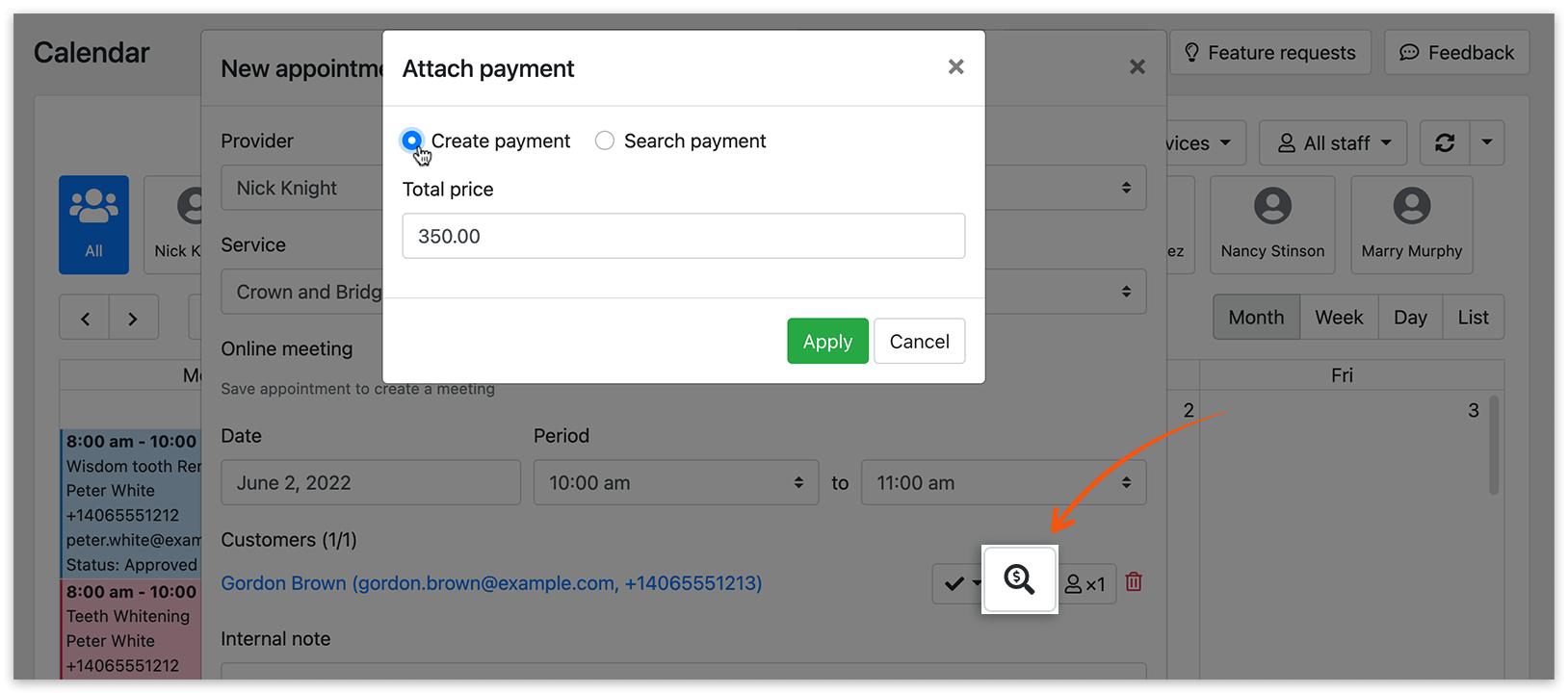
With the functionality “Create a WooCommerce order from backend” “If enabled, a WooCommerce order will be created for appointment when a payment is attached in backend” would it be possible to create an order in WooCommerce from a bookly reservation created using the Google calendar?
It could be done as indicated in this image https://support.booking-wp-plugin.com/hc/article_attachments/5601082016786/bookly-pro-payments-09.png ?Thank you so much
Hello,
While you can create an WooCommerce order in the back-end, this option doesn’t work the other way around with the Google calendar synchronization. You can link payment details to a manually added appointment only in Bookly’s back-end at the moment.
Thanks!
Alex
Like us?
Rate us!
High rating = More sales = More functions and flexibility
===
Documentation |
FAQ |
Feature Requests |
Video Tutorials
YES, IT WORKS  Thanks to the SandBox demo I have been able to test it.
In Google Calendar the appointment is created, it appears in the Bookly appointment list. In the “Edit appointment” form, you can see that it is a “Custom” type service, but you only have to change the type of service in the drop-down to the desired service and save. Then you create a payment manually as indicated in your documentation and get the reservation created in Google Calendar to have an associated order in WooCommerce.
Thanks to the SandBox demo I have been able to test it.
In Google Calendar the appointment is created, it appears in the Bookly appointment list. In the “Edit appointment” form, you can see that it is a “Custom” type service, but you only have to change the type of service in the drop-down to the desired service and save. Then you create a payment manually as indicated in your documentation and get the reservation created in Google Calendar to have an associated order in WooCommerce.
As indicated in this image https://support.booking-wp-plugin.com/hc/article_attachments/5601082016786/bookly-pro-payments-09.png
Hello,
Yes, it can be done how you have described it, but it is a manual process and requires several steps, in order to have a linked payment
Thanks!
Alex
Like us?
Rate us!
High rating = More sales = More functions and flexibility
===
Documentation |
FAQ |
Feature Requests |
Video Tutorials
Hi, I was wondering if you’ll be adding venmo? Thank you!
Hello,
Thank you for your message.
Currently, this payment gateway is not supported. Though you could use the WooCommerce integration, and use the payment gateways that WooCommerce offers. If you enable this option, then customers will be redirected to a WooCommerce cart after the Details step of the booking form, and payments from Bookly will be disabled.
Thanks!
Yulia
Like us?
Rate us!
High rating = More sales = More functions and flexibility
===
Documentation |
FAQ |
Feature Requests |
Video Tutorials
Presale question. The synchronisation is made using each staff member google calendar? (Multiple calendars – one for each staff member?)
Hello,
Thanks for reaching out.
After you set up the connection, then you can connect each of your staff members’ Bookly Calendar to their respective Google Calendar.
You can integrate Bookly PRO with Google Calendar so that all new bookings created in Bookly Calendar will be automatically copied to the Google Calendar or vice versa. When you’re finished configuring the settings, you can then enable the connection to synchronize each staff member’s appointments with Google Calendar. This default integration included in Bookly Pro offers two types of synchronization modes – One-way and Two-way front-end only.
The One-way type of sync will display your Bookly appointments in Google Calendar.
Whereas with the “Two-way front-end only” sync mode, your Google Calendar events will be taken into account when offering available time slots to clients in your booking form. If you enable this type of sync, all updates in Bookly will automatically appear in your Google Calendar – this means that the events that were created in Google Calendar will not be copied and displayed in your Bookly Calendar. Still, Bookly will consider this time slot as busy and won’t be available for booking in your front-end booking form. And all changes will affect the new appointments only so all existing appointments won’t be changed. However, with this type of sync, Bookly ignores all Google events created via Bookly since it is made to optimize the time to fetch events from Google. So each time a customer goes to the ‘time’ step of the booking form, Bookly sends a request to Google like: “Hey Google, send me all events from the staff Google calendar except events with the hidden field ‘created by Bookly’ because I already know about them from my Bookly calendar!”
Please check this article: https://support.booking-wp-plugin.com/hc/en-us/articles/203572552-Google-Calendar-Sync for more information and instructions regarding Google Calendar sync and these two types of synchronization modes.
However, if you need a full two-way synchronization between two (Bookly and Google Calendar) calendars, please check the Bookly Advanced Google Calendar Add-on: https://support.booking-wp-plugin.com/hc/en-us/articles/360005100854-Advanced-Google-Calendar-Add-on as it allows you to keep all your Bookly calendar data and any further schedule updates in sync with Google Calendar. So all bookings created or updated in Bookly Calendar will be automatically reflected in the Google Calendar, and vice versa. Please note that when you create All day event in Google Calendar, its status is set to Free by default, hence, you should change its status to Busy to display this event in Bookly Calendar.
Kindly note that Bookly is designed to work with a weekly schedule. The schedules you set up for the staff members are their consistent availability moving forward – for each and every week. So timeslots offered in the front-end booking form are founded on these schedules. And the time slot interval or how the hours are divided and presented in the booking form is based on the time slot length. The add-ons https://www.booking-wp-plugin.com/features/, such as Bookly Advanced Google Calendar Add-on, are intended to help give more flexibility to achieve desired features. Since Bookly Pro is the main plugin, it needs to be installed and activated to be able to use Bookly add-ons since these add-ons are supplementary to the main Bookly Pro plugin. And the booking form looks exactly like the demo.
Please check our demo: https://www.booking-wp-plugin.com/demo/advanced-google-calendar/. OR try the sandbox on a live website before purchasing to understand how Bookly PRO and its add-ons work together and discern if Bookly products fit your business needs. To access the sandbox mode, please go to https://www.booking-wp-plugin.com/demo-list/, add your email address, click on the “Configure” button, and then follow the rest of the steps you’ll receive in your mail.
If I am off-base, you require further assistance or have additional questions/clarifications about this, please email us at sales@bookly.info and mention Ticket #248940 so we can look into this matter for you.
Many thanks,
Richel
Like us? Rate us!
High rating = More sales = More functions and flexibility
===
Documentation |
FAQ |
Feature Requests |
Video Tutorials
Hi, we are trying to install this add on but it looks like it’s Depreciated.
Hello,
Thank you for your message.
The issue you’ve raised requires personalized support, please follow the link below to create a support ticket, so we can look into this matter.
Click Here To Get Bookly Support
Thanks!
Kate
Like us?
Rate us!
High rating = More sales = More functions and flexibility
===
Documentation |
FAQ |
Feature Requests |
Video Tutorials
[This post can be removed]
Hello,
You can follow this guide on how to set up the synchronization process: https://support.booking-wp-plugin.com/hc/en-us/articles/203572552-Google-Calendar-Sync
Let us know if you have any questions.
Thanks!
Alex
Like us?
Rate us!
High rating = More sales = More functions and flexibility
===
Documentation |
FAQ |
Feature Requests |
Video Tutorials
Hello,
I want to synchronize bookly with google calendar. I want to know if I need only this add-on or something else ? I also want to know if the price of licence is life time or for 1 year ? Thanks for your answer
Hello,
Thanks for reaching out.
You can integrate Bookly PRO with Google Calendar so that all new bookings created in Bookly Calendar will be automatically copied to the Google Calendar or vice versa. When you’re finished configuring the settings, you can then enable the connection to synchronize each staff member’s appointments with Google Calendar. This default integration offers two types of synchronization modes – One-way and Two-way front-end only.
The One-way type of sync will display your Bookly appointments in Google Calendar.
Whereas with the “Two-way front-end only” sync mode, your Google Calendar events will be taken into account when offering available time slots to clients in your booking form. If you enable this type of sync, all updates in Bookly will automatically appear in your Google Calendar – this means that the events that were created in Google Calendar will not be copied and displayed in your Bookly Calendar. Still, Bookly will consider this time slot as busy and won’t be available for booking in your front-end booking form. And all changes will affect the new appointments only so all existing appointments won’t be changed. However, with this type of sync, Bookly ignores all Google events created via Bookly since it is made to optimize the time to fetch events from Google. So each time a customer goes to the ‘time’ step of the booking form, Bookly sends a request to Google like: “Hey Google, send me all events from the staff Google calendar except events with the hidden field ‘created by Bookly’ because I already know about them from my Bookly calendar!”
Please check this article: https://support.booking-wp-plugin.com/hc/en-us/articles/203572552-Google-Calendar-Sync for more information and instructions regarding Google Calendar sync and these two types of synchronization modes.
However, if you need a full two-way synchronization between two (Bookly and Google Calendar) calendars, please check the Bookly Advanced Google Calendar Add-on: https://support.booking-wp-plugin.com/hc/en-us/articles/360005100854-Advanced-Google-Calendar-Add-on as it allows you to keep all your Bookly calendar data and any further schedule updates in sync with Google Calendar. So all bookings created or updated in Bookly Calendar will be automatically reflected in the Google Calendar, and vice versa. Please note that when you create All day event in Google Calendar, its status is set to Free by default, hence, you should change its status to Busy to display this event in Bookly Calendar.
Bookly PRO and all its add-ons are one-time purchases and currently include lifetime plugin updates. However, as per CodeCanyon (Envato Market) stipulations, customer support is only reserved for users with active item support subscriptions of all plugins and add-ons. Yet, considering our Bookly users, we only ask for an active item support subscription solely of Bookly PRO, and not all plugins and add-ons. Upon purchase of Bookly PRO, it comes with a free six-month item support subscription. If needed in the future, you can extend (if it’s still active) or renew (if it has expired) from CodeCanyon (Envato Market). Or a recharged, if you have, Bookly Cloud account: https://support.booking-wp-plugin.com/hc/en-us/articles/360015908619-Bookly-Cloud-Products.
Please check out this article about item support subscriptions: https://support.booking-wp-plugin.com/hc/en-us/articles/4898431917714-Customer-Support.
Kindly note that Bookly is designed to work with a weekly schedule. The schedules you set up for the staff members are their consistent availability moving forward – for each and every week. So timeslots offered in the front-end booking form are founded on these schedules. And the time slot interval or how the hours are divided and presented in the booking form is based on the time slot length.
The add-ons https://www.booking-wp-plugin.com/features/, such as the Bookly Advanced Google Calendar Add-on, are intended to help give more flexibility to achieve desired features. I want to note please that Bookly Pro is the main plugin, hence, it needs to be installed and activated to be able to use Bookly add-ons since these add-ons are supplementary to the main Bookly Pro plugin. And the booking form looks exactly like the demo.
Please check the demo: https://www.booking-wp-plugin.com/demo/advanced-google-calendar/ OR try the sandbox on a live website before purchasing to understand how Bookly PRO and its add-ons work together and discern if Bookly products fit your business needs. To access the sandbox mode, please go to https://www.booking-wp-plugin.com/demo-list/, add your email address, click on the “Configure” button, and then follow the rest of the steps you’ll receive in your mail.
If I am off-base, you require further assistance, or have additional questions/clarifications about this, please email us at sales@bookly.info and mention Ticket #200154 so we can look into this matter for you.
Many thanks,
Richel
Like us? Rate us!
High rating = More sales = More functions and flexibility
===
Documentation |
FAQ |
Feature Requests |
Video Tutorials
Hello I got a website from another company you bought the bookly and the google calendar addon I managed to connect to google calendar but for some reason when someone books from the website the appointment shows up on the google calendar but if I create one from the google calendar it does not show on the website. Im using the two way front end only Synchronization.
Hello,
Thank you for your message.
This is expected behavior for the two way front end only synchronization, the manually added events will block the staff member only on front-end/booking form. If you would like these events to be added to Bookly’s back-end then you need the Advanced Google Calendar (Add-on) and use the 2 way synchronization option.
Thanks!
Alex
Like us?
Rate us!
High rating = More sales = More functions and flexibility
===
Documentation |
FAQ |
Feature Requests |
Video Tutorials
That’s the 2 way synchronization option. Here you can check more details about synchronization options how they work: https://support.booking-wp-plugin.com/hc/en-us/articles/203572552-Google-Calendar-Sync
Thanks!
Alex
Like us?
Rate us!
High rating = More sales = More functions and flexibility
===
Documentation |
FAQ |
Feature Requests |
Video Tutorials
Good day. If I schedule an appointment in the Google calendar, will it also be scheduled in Bookly?
Hello,
Thank you for your message.
If you add an event in a synchronized google calendar, then an appointment for the same time slot will be created in Bookly’s calendar for this staff member.
Thanks!
Alex
Like us?
Rate us!
High rating = More sales = More functions and flexibility
===
Documentation |
FAQ |
Feature Requests |
Video Tutorials
Hello
I have purchased Bookly Advanced Google Calendar (add-on) and it does not meet my expectations. Is it possible to receive a refund?
Thank you
Regards
Hello,
Thank you for your message.
Please check this link regarding the refund procedure: https://help.market.envato.com/hc/en-us/articles/202821460-Can-I-Get-A-Refund-
Before you ask for a refund, please refer to Envato Market Refund Rules to be informed of the situations when Envato is not obliged to give refunds: https://themeforest.net/page/customer_refund_policy
Thanks!
Yulia
Like us?
Rate us!
High rating = More sales = More functions and flexibility
===
Documentation |
FAQ |
Feature Requests |
Video Tutorials
hi it dosent work
Hello,
Thank you for your message.
The case you’ve raised requires personalized support, please follow the link below to create a support ticket, so we can look into this matter.
Click Here To Get Bookly Support
Thanks!
Kate
Like us?
Rate us!
High rating = More sales = More functions and flexibility
===
Documentation |
FAQ |
Feature Requests |
Video Tutorials