WooCommerce POS Configurable Barcode
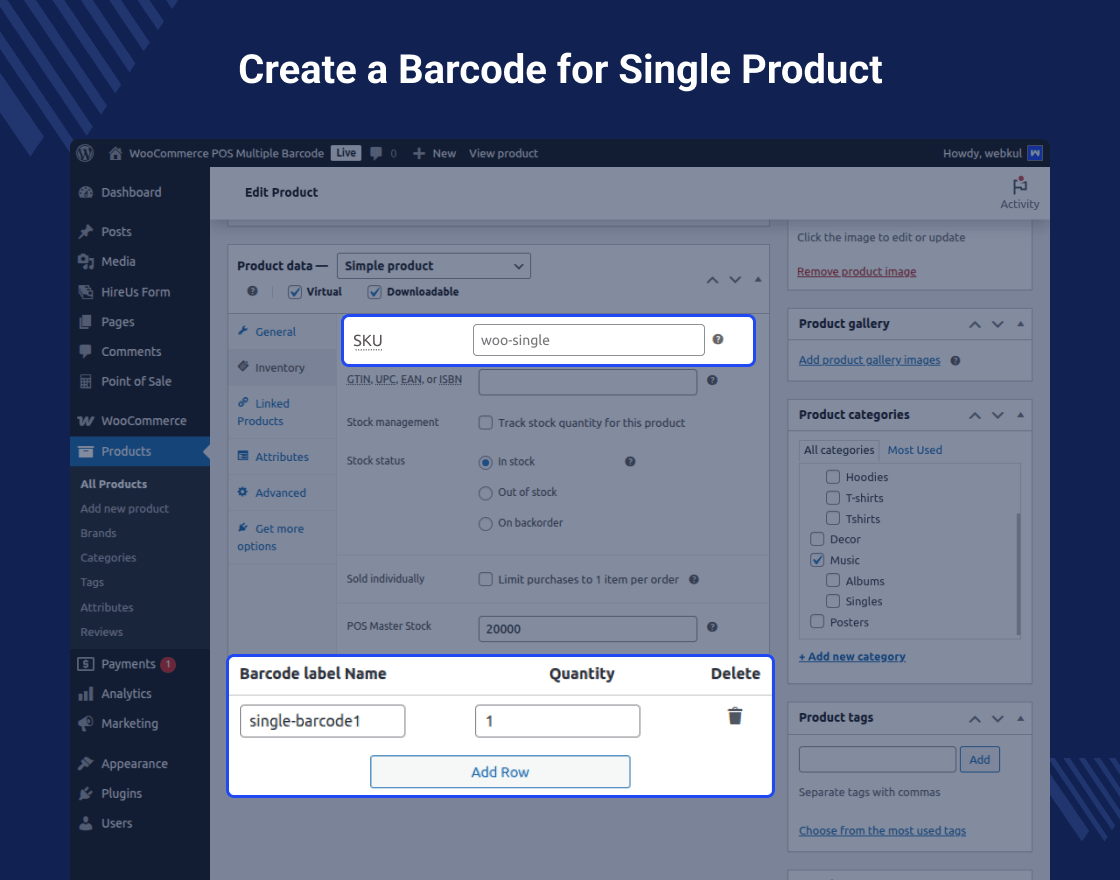
With the help of WooCommerce POS Configurable Barcode Plugin, the admin can create multiple barcodes for a product and assign them with multiple quantities.
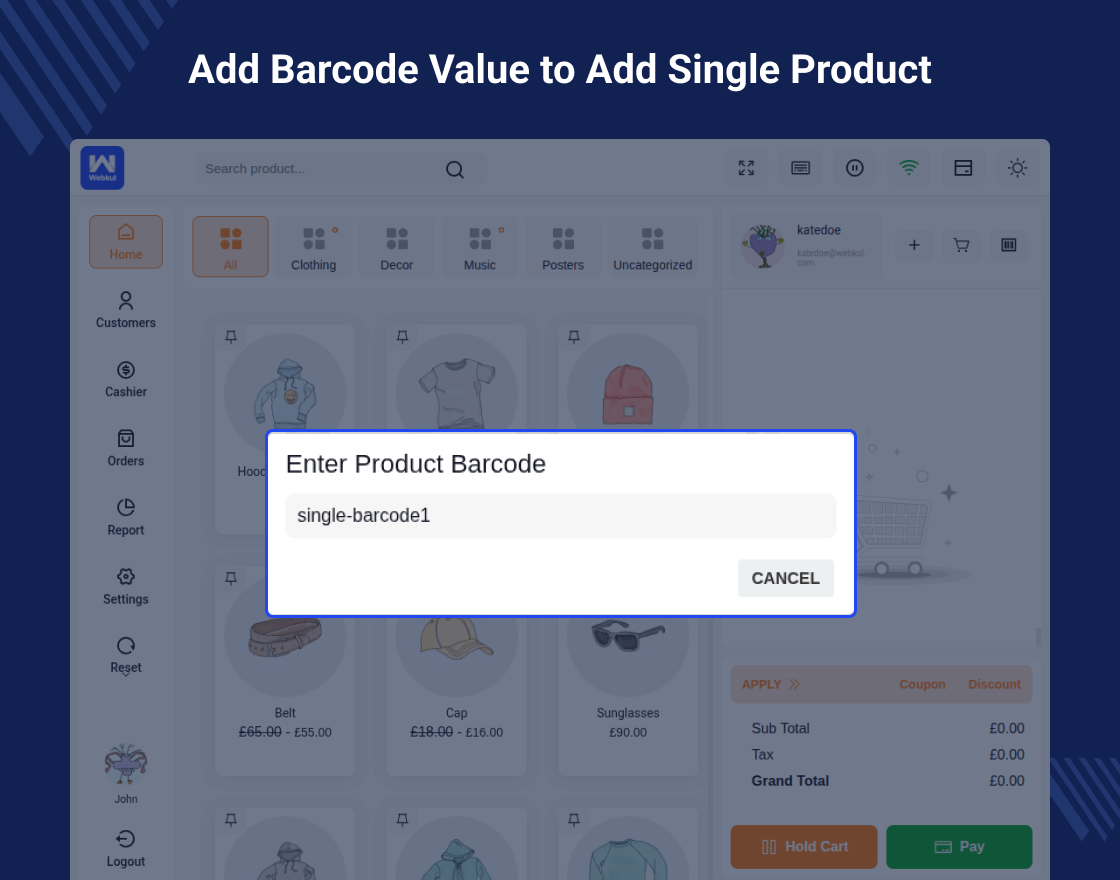
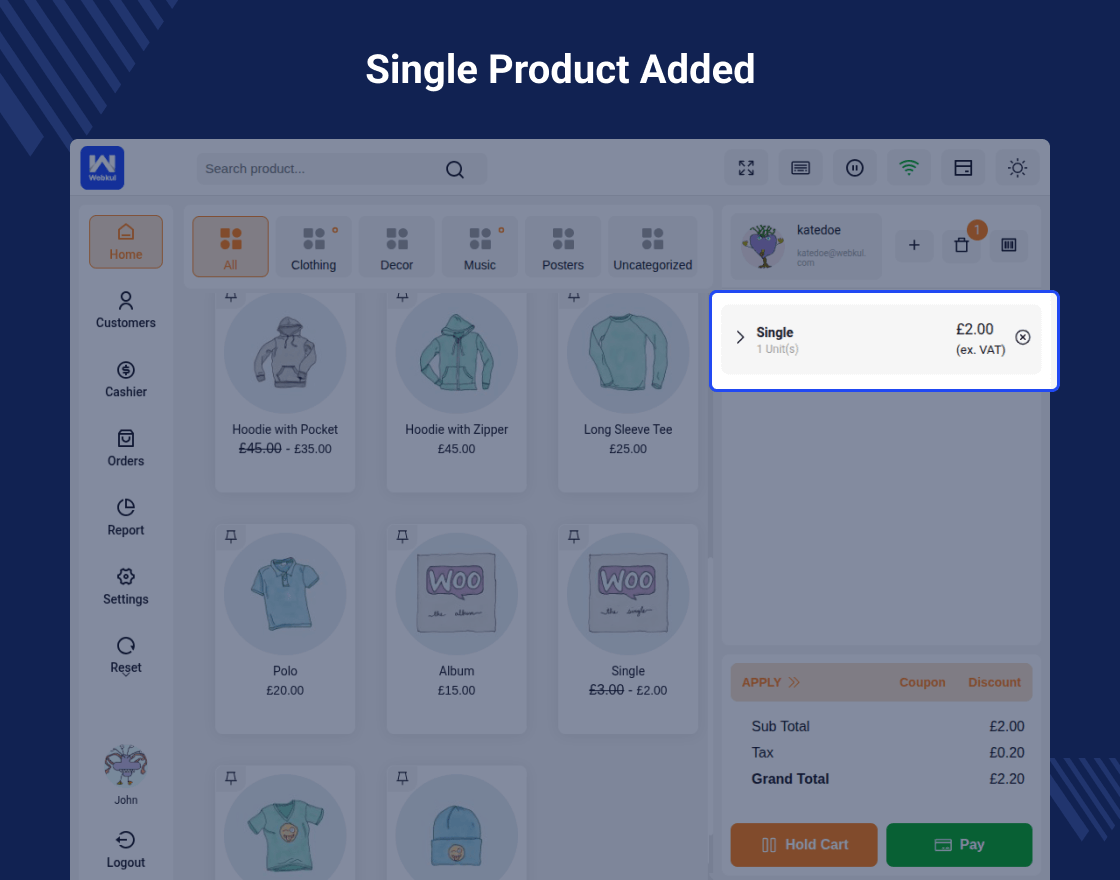
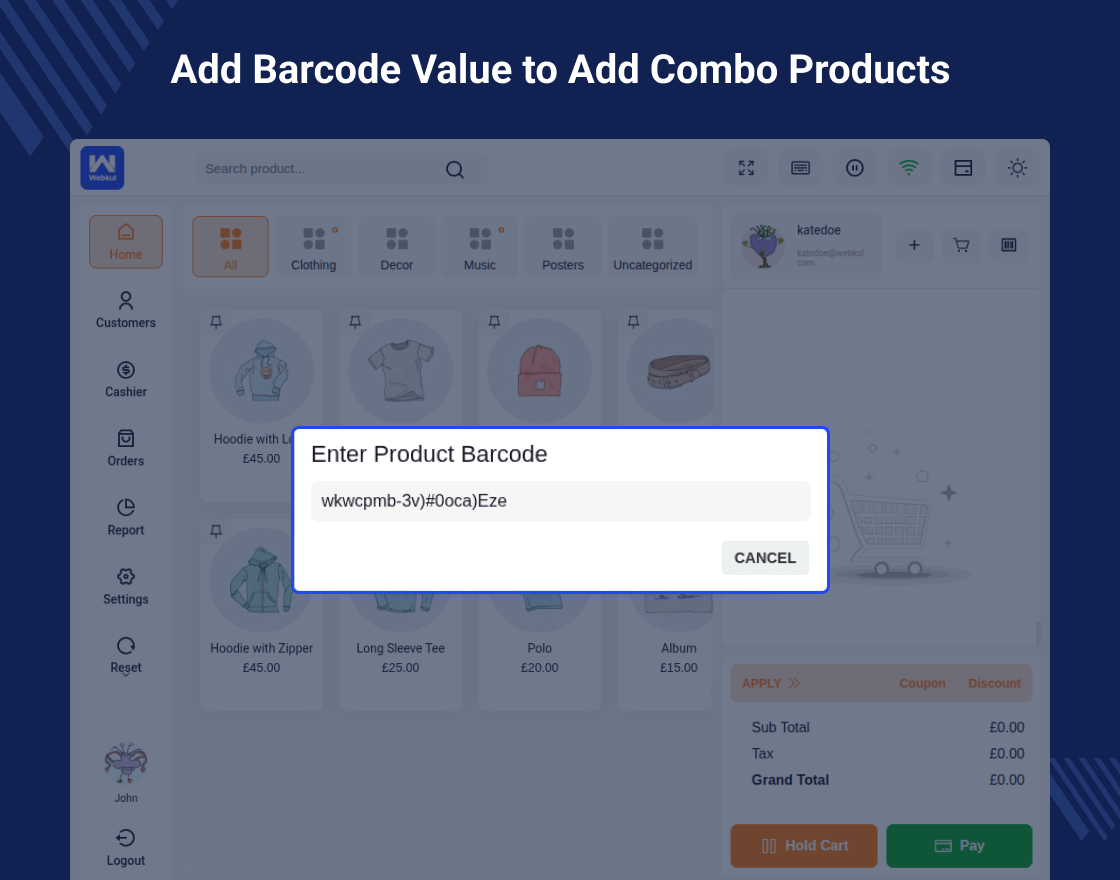
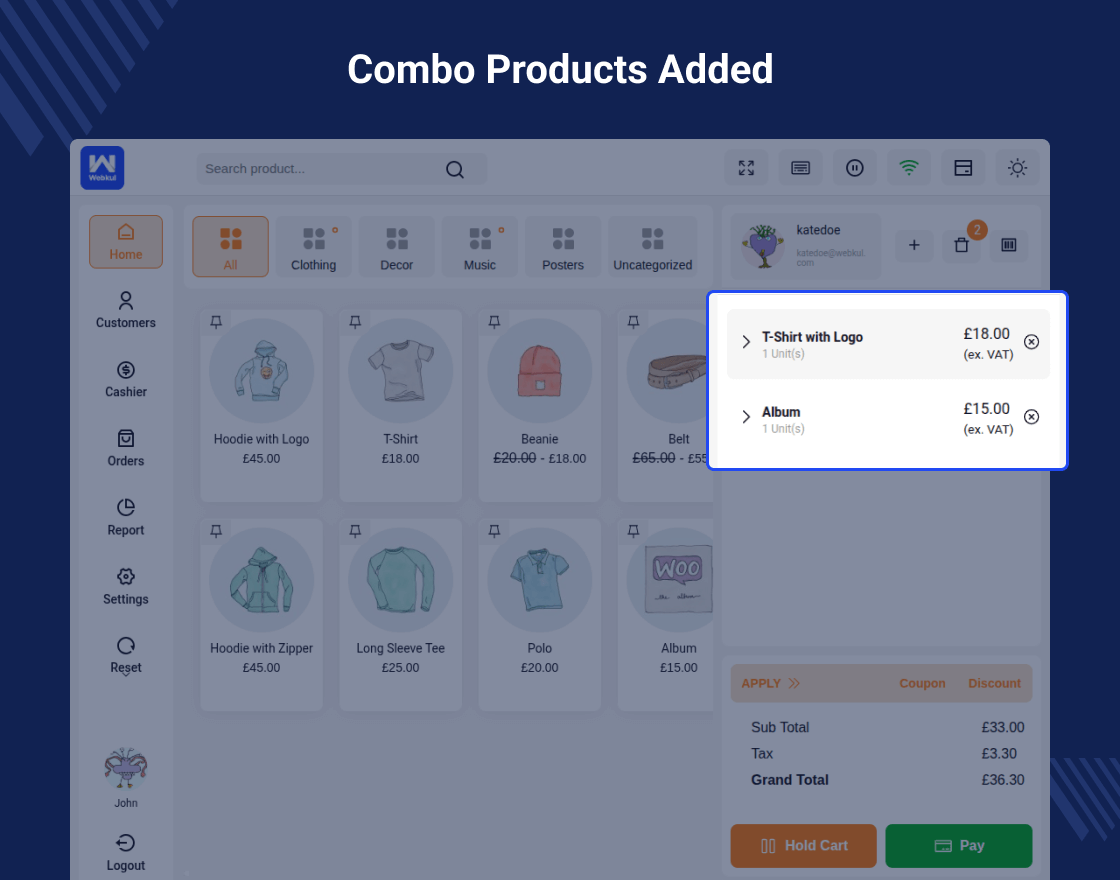
At the front end, the POS agent simply needs to scan the barcode or enter the Barcode Name to add the product with its associated quantities to the cart.
A barcode scan can do wonders by processing things for the customers’ at the spur of the moment, thus providing the customers with a fascinating user experience and generating real sales and revenue.
Note – This plugin is an add-on to the Point of Sale System for WooCommerce. So, to use this plugin you need to purchase our Point of Sale System for WooCommerce first.
This module is now compatible with WooCommerce’s new High-Performance Order Storage (HPOS) feature.and Cart and Checkout block.
Check how to activate your WooCommerce plugin through the purchase code. and How do you get updates on Webkul Modules directly on the Plugins page.
Video Preview
Why WooCommerce POS Configurable Barcode?
Support
Dear Customers, if you have a question/query, please raise a ticket at webkul.uvdesk.com. We will do our best to answer as quickly as it is possible. Kindly do not give us a low rating without contacting support on the issue you’ve faced. We are always happy to help you.
Features of WooCommerce POS Configurable Barcode
- The admin can create multiple barcodes for a product.
- Different quantities can be assigned to each barcode.
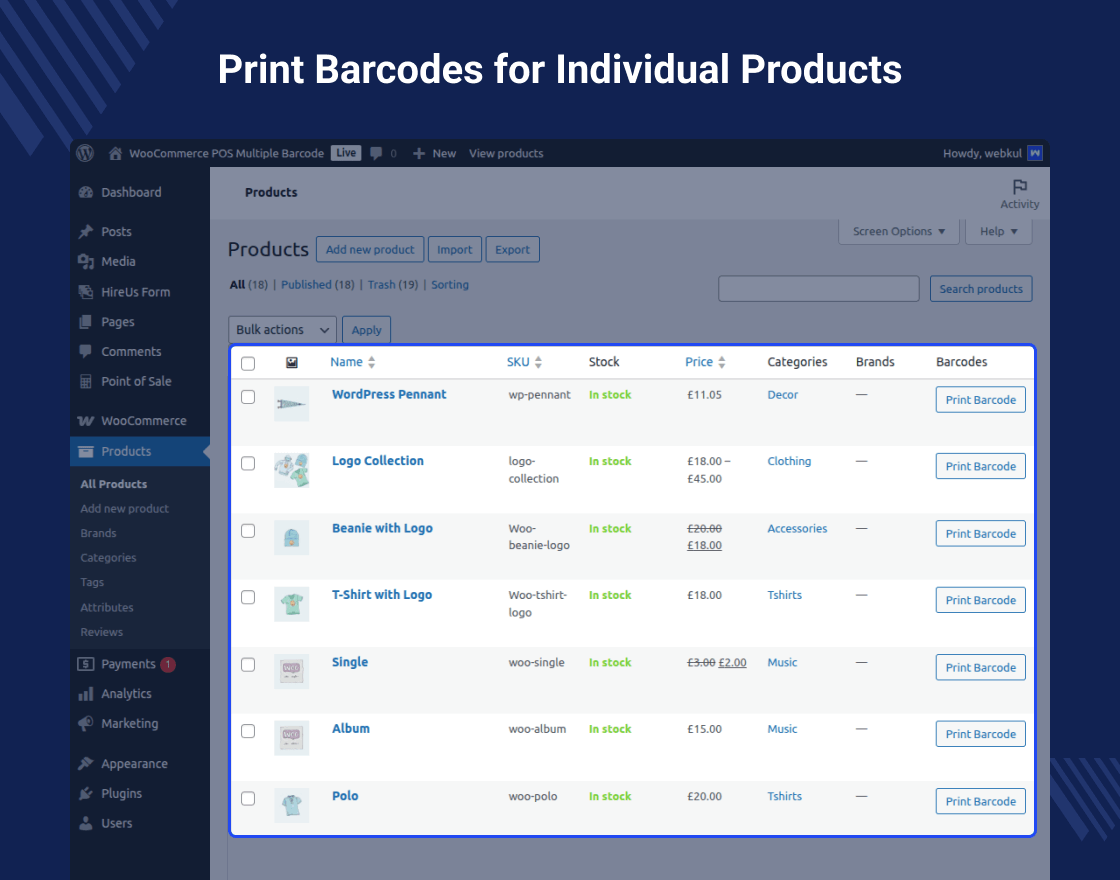
- The multiple barcodes can be printed from the product grid by clicking the barcode icon for a specific product.
- The POS agent needs to scan or can enter the barcode name to add the product units to the cart.
- The WooCommerce POS Configurable barcode supports dark theme.
- Multiple barcodes for a single product save time & increase the efficiency of a sales agent to add products to orders.
Highlighted Features
1 – Assign Multiple Barcodes
The admin can assign multiple barcodes to a product as required.2 – Set Barcode Quantity
For each of the product barcodes, the admin can set the respective quantity as required.3 – Print Generated Barcodes
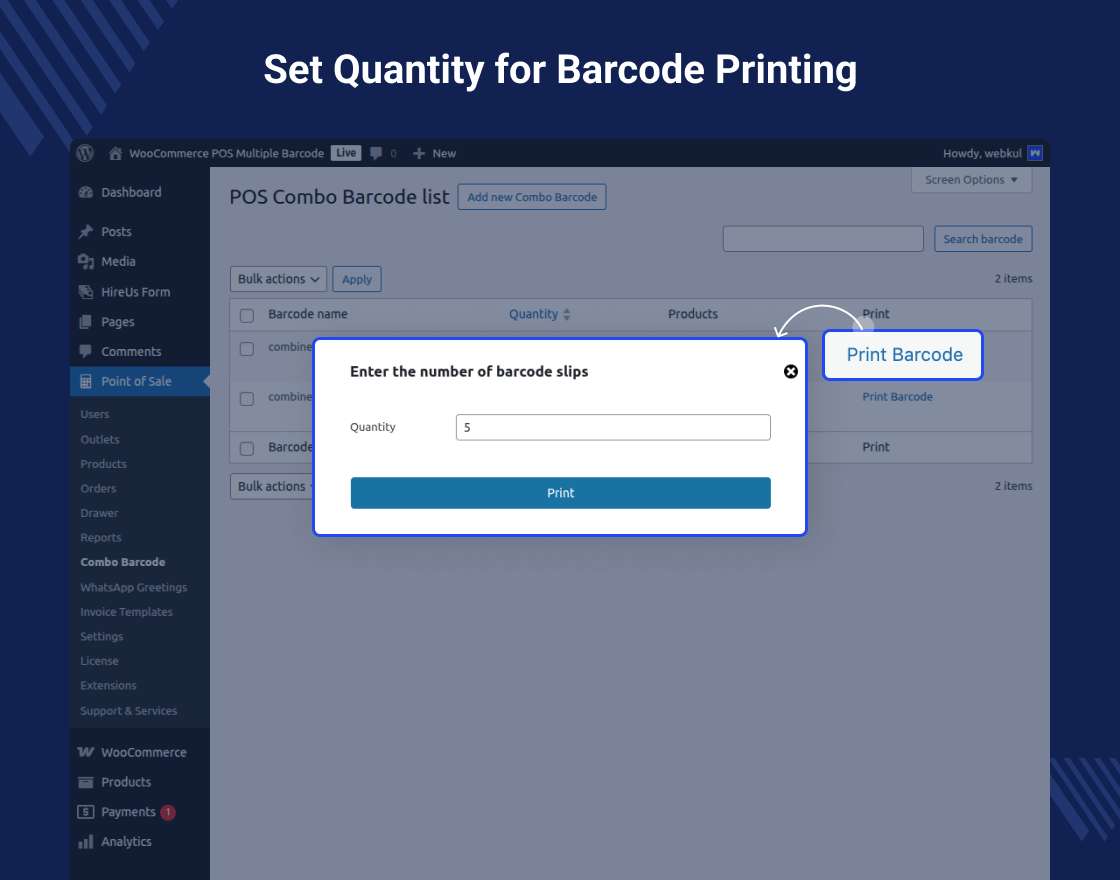
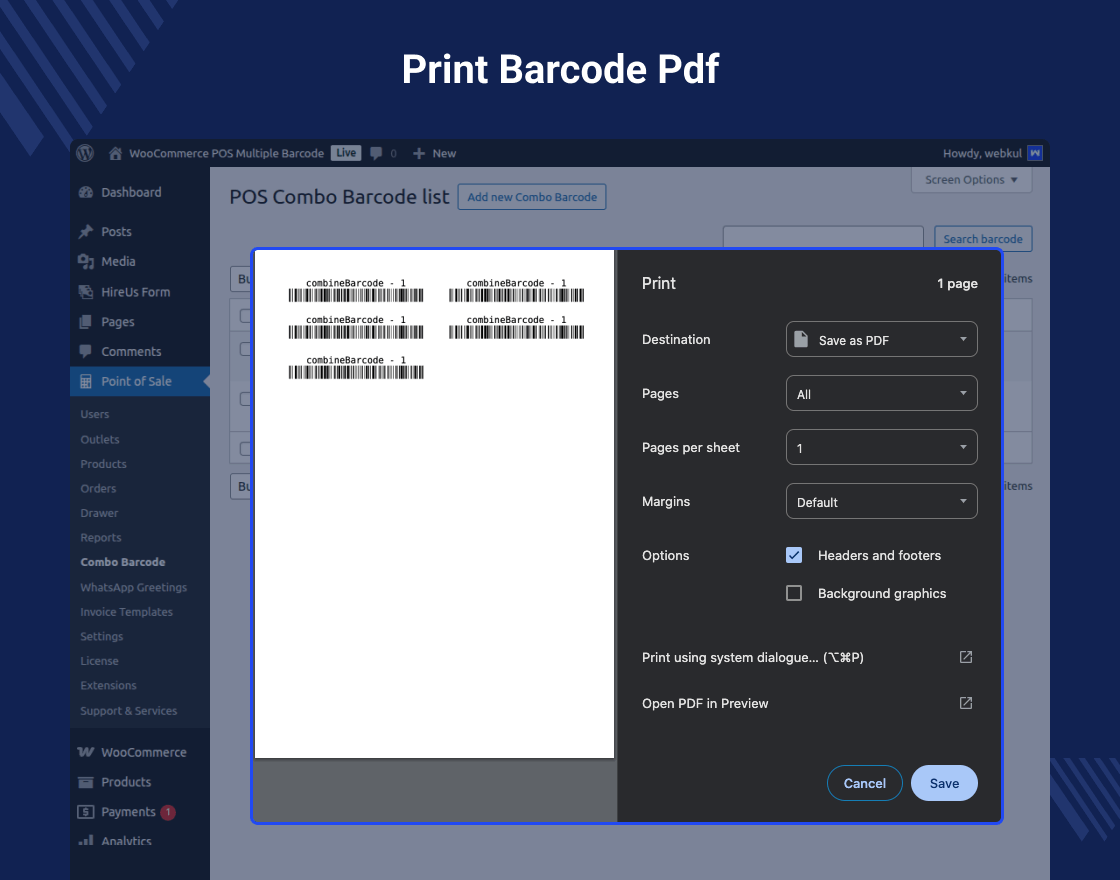
The admin can click on the barcode icon on the product grid section to print the multiple barcodes for the product.4 – Scan and Add To the Cart
The agent can enter the barcode name or scan the respective product barcode to add the assigned product unit quantity to the cart.Business Use
If you have POS terminals, then having multiple product barcodes help streamline the checkout process for your point of sale agents.
For each product barcode a product unit quantity is assigned. So, whenever that particular barcode gets scanned, the assigned product units get added to the cart instantaneously.
This process helps the POS agents to easily add the quantity that the customer has requested for a product. So, there is no need to keep scanning the product barcode multiple times.
Hence, this helps to reduce the time taken to process the customer orders at a pos terminal. The pos agents can directly add the required quantity of the product into the cart by scanning the respective barcode.
Success Story
Change Log
"Initial release v 1.0.0", "Current release v 1.0.3"
v 1.0.3
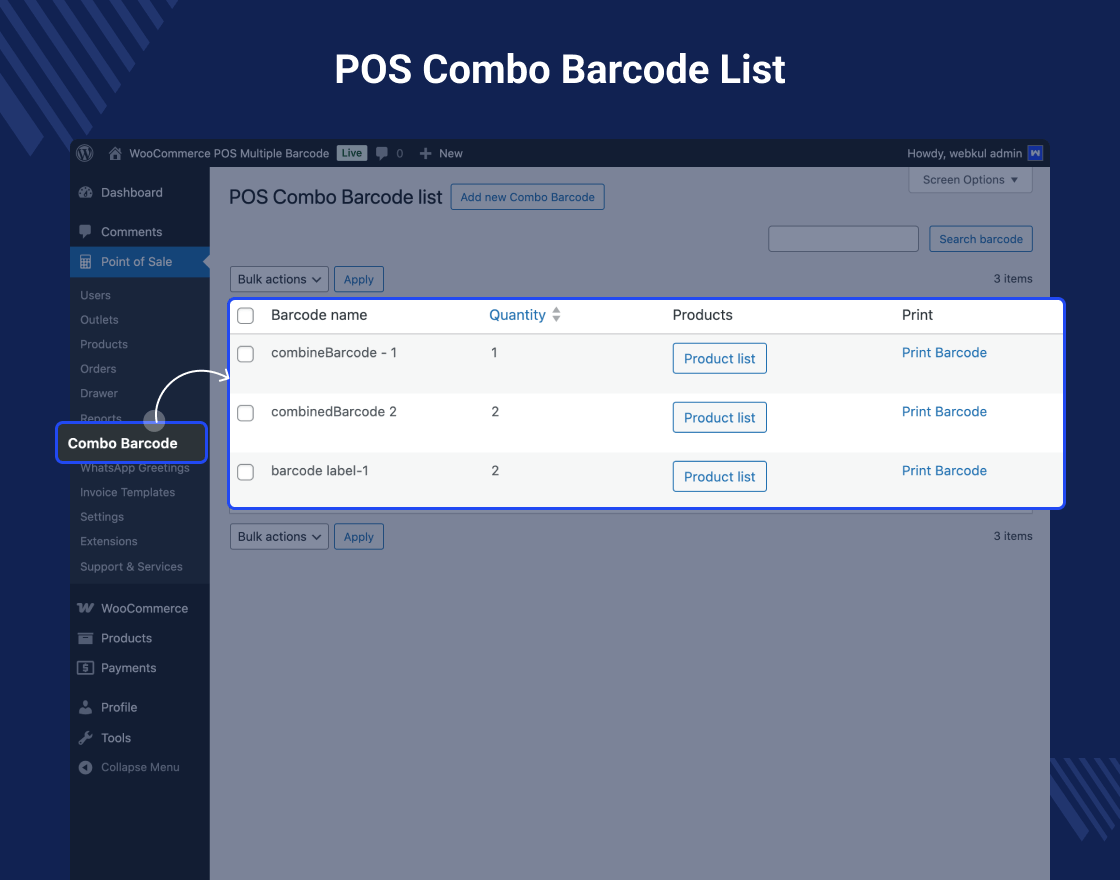
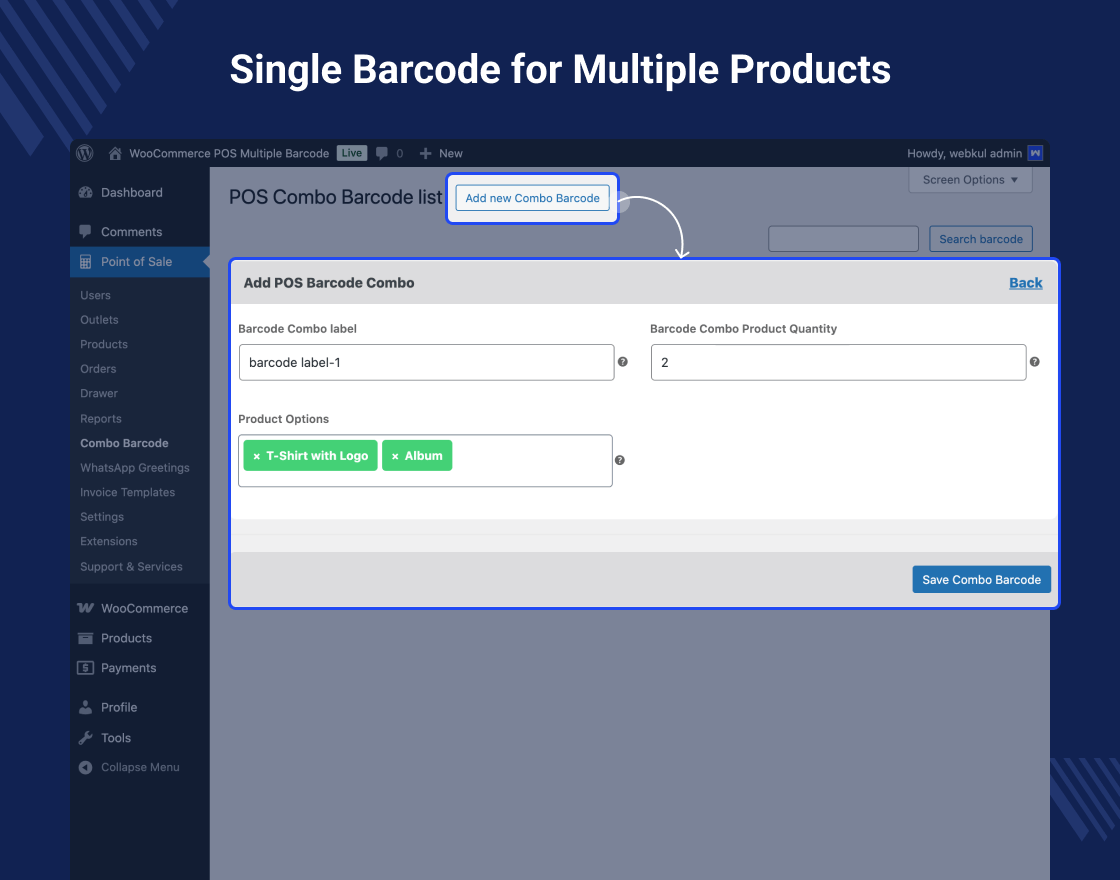
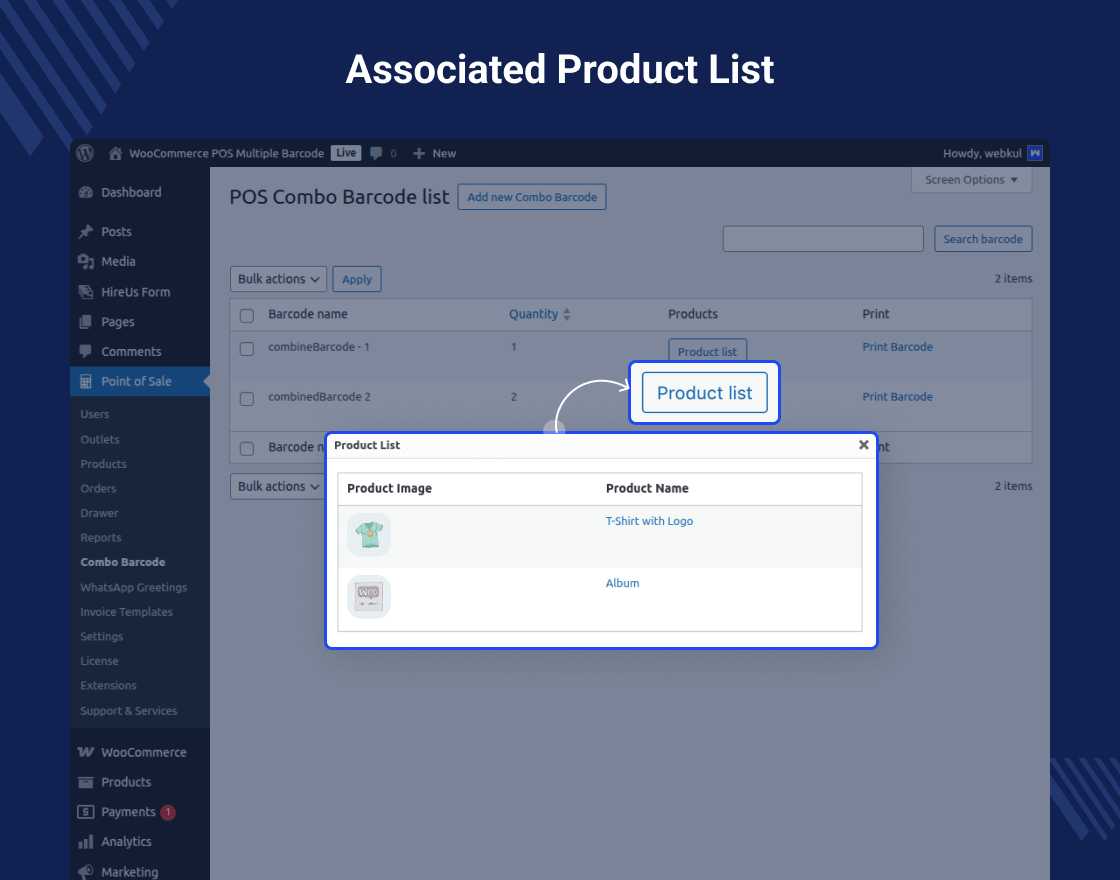
Added: Combo barcode functionality in the module
Admin settings and menu updated as per pos version 6.4
Compatibility with Point of Sale version 6.4
v 1.0.2
Update - Compatible addon as per WooCommerce 6.0
Fixed - Solved minor issues related to strings.
Update - Added JsBarcode Library for barcode generation
v 1.0.1
Update - Compatible addon as per woocommerce 5.6.0
Update - Compatible addon as per Point of sale 3.6.3
 v 1.0.0
Initial release