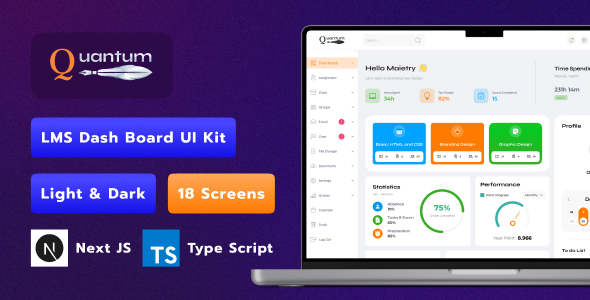
- Responsive design optimized for laptop screens.
- Dark and light themes for personalized user experience.
- State management for efficient data handling.
- App routing for seamless navigation between pages.
- Gauge chart and donut chart for data visualization.
Next.js TypeScript App Installation Guide
Promo
Step 1: Prerequisites
Ensure you have the following installed on your system:
Step 2: Download the Template
After purchasing, download the template package from CodeCanyon. Extract the downloaded ZIP file to your desired location.
Step 3: Open a Terminal
Open a terminal (Command Prompt, PowerShell, or Terminal) and navigate to the extracted template directory:
cd path/to/your/template-directory
Step 4: Install Dependencies
Run the following command to install the necessary dependencies:
npm install
Step 5: Run the Development Server
After the dependencies are installed, start the development server by running:
npm run dev
The server will start, and you can view your application by opening a web browser and navigating to http://localhost:3000.
Step 6: Building for Production
To create an optimized production build, run:
npm run build
Then, start the server with:
npm start
Your application will be available at http://localhost:3000.
Troubleshooting
If you encounter any issues, please refer to the Next.js documentation.
Thank you for purchasing our Quantum Next Js LMS Dashboard Template. This guide will walk you through the steps to install and run the application on your local server.
Enjoy your new template!
Please note: The images shown in the demo are not available for download as they are protected by copyright. If you’d like to use them, we can provide links where you can purchase the appropriate licenses.