.jpg?auto=format&q=94&cf_fit=crop&gravity=top&h=8000&w=590&s=3cbaa6a98501ce9545d50f6695a6afaec1a33ec7e8dd95aa84aa979a8ac9ca4b)
CueCraft Studio ScreenCap — Browser-Based Screen Recorder Zero install. Zero subscription. One HTML file.
CueCraft Studio ScreenCap is a professional screen recorder delivered as a single self-contained HTML file. Open it in Chrome or Edge and you’re recording in seconds. No software to install, no account to create, no cloud upload — your recordings stay on your device, always.
Built for content creators, educators, trainers, coaches, and developers who need a clean, reliable way to capture their screen without bloated software, monthly fees, or a steep learning curve.
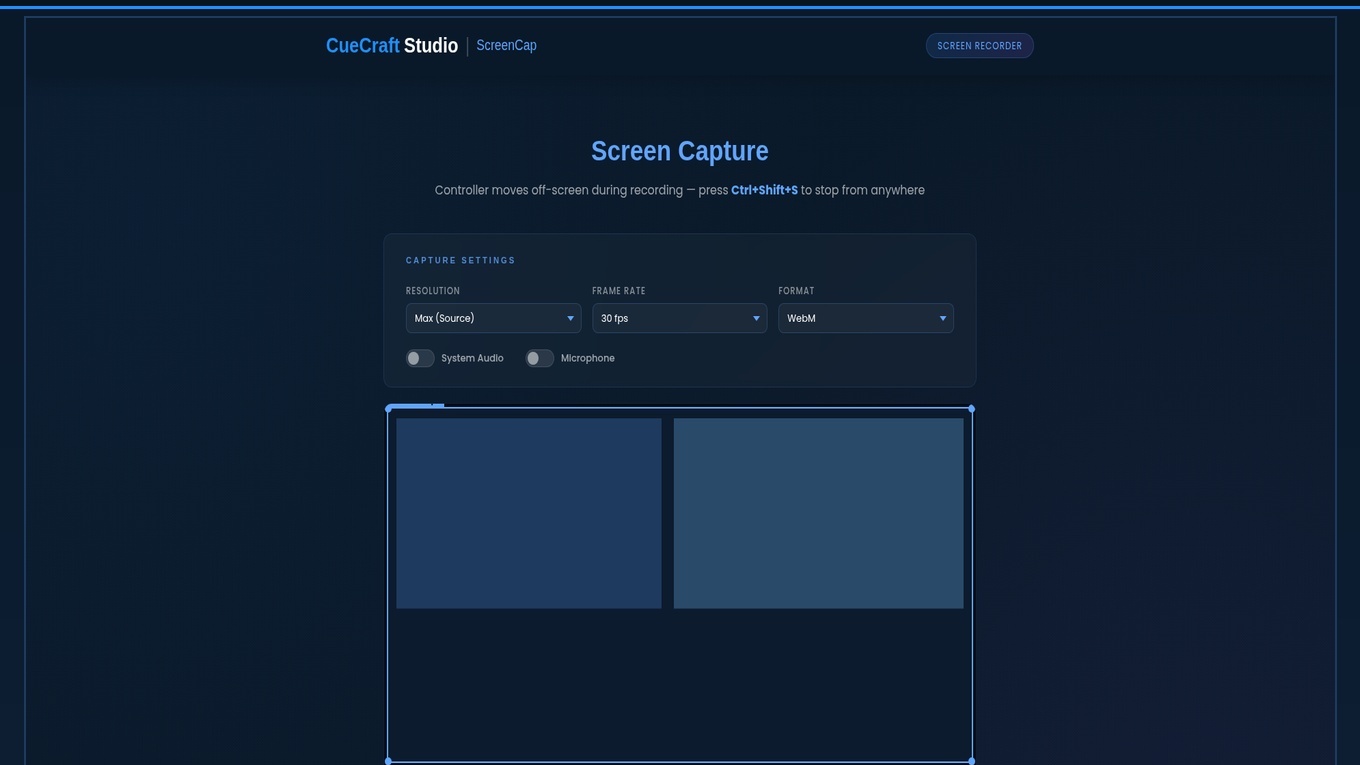
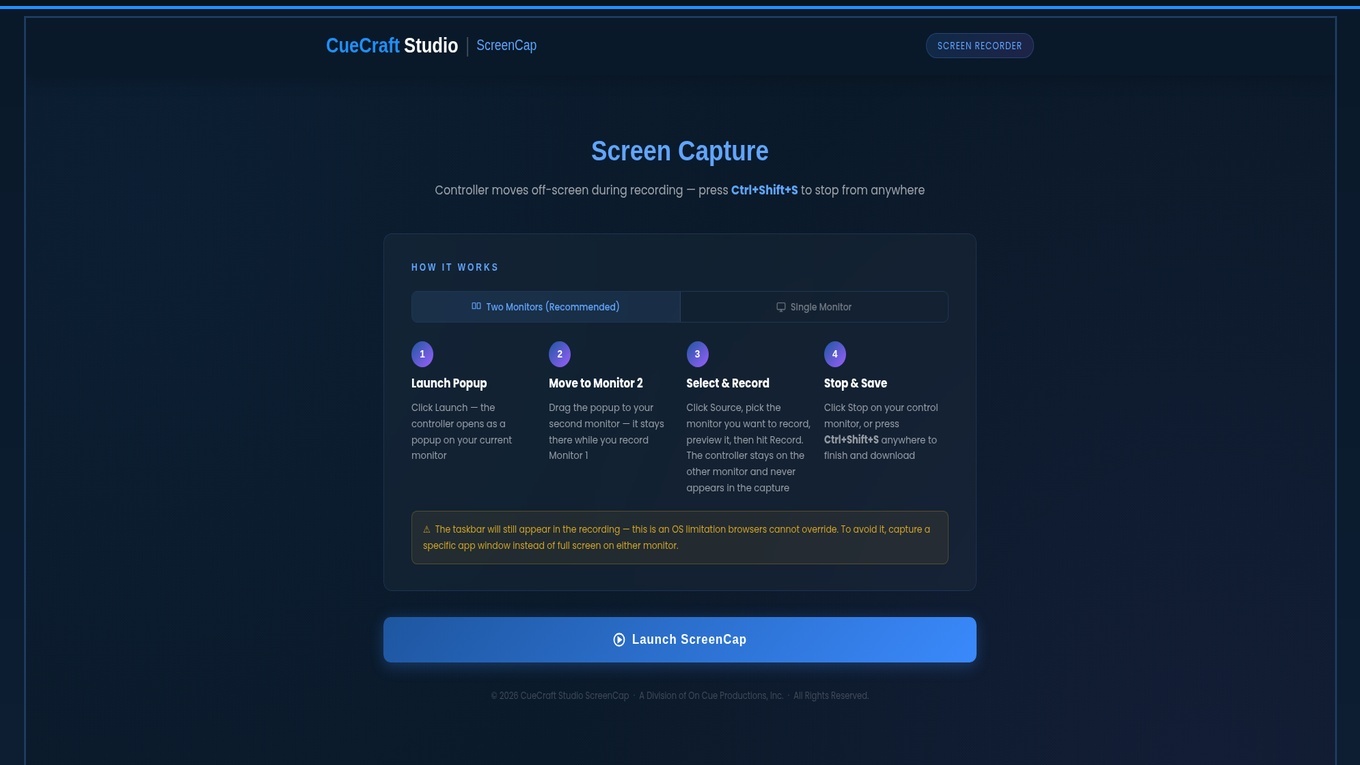
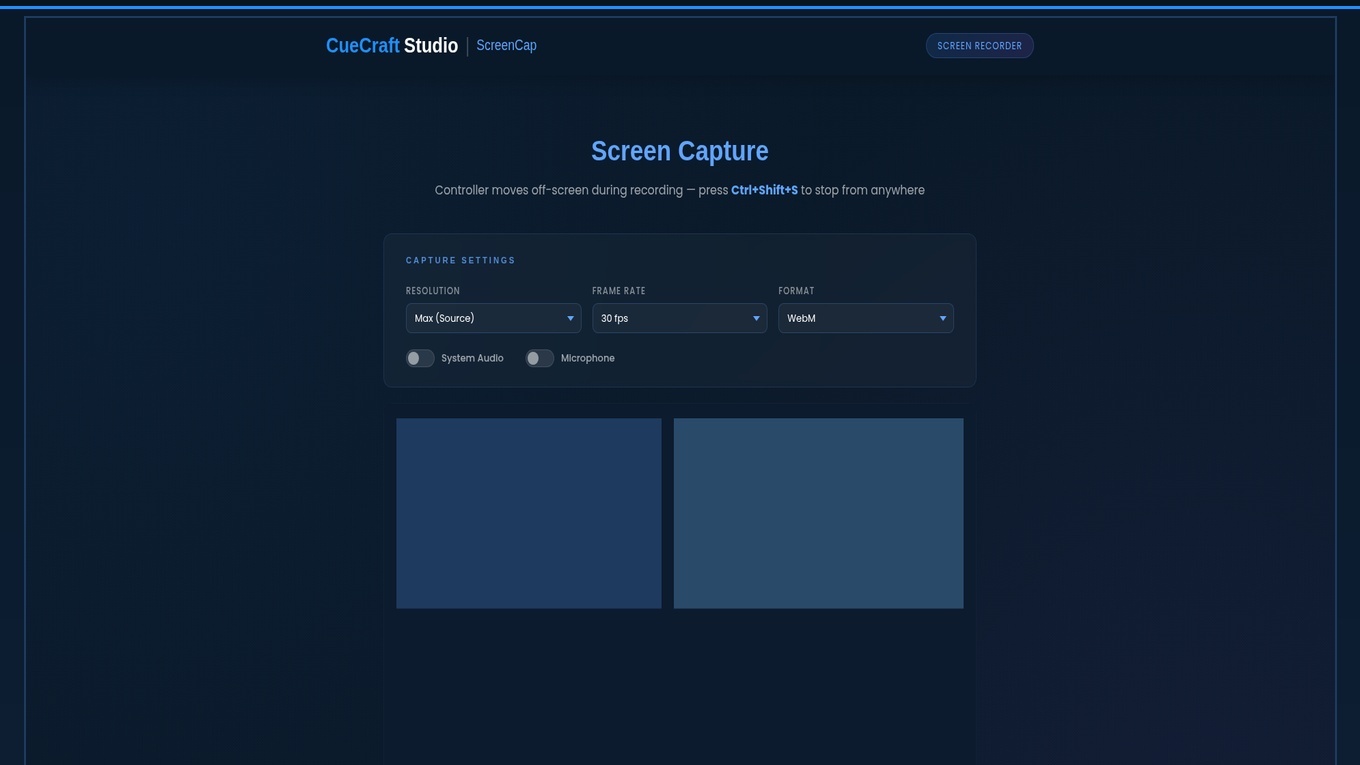
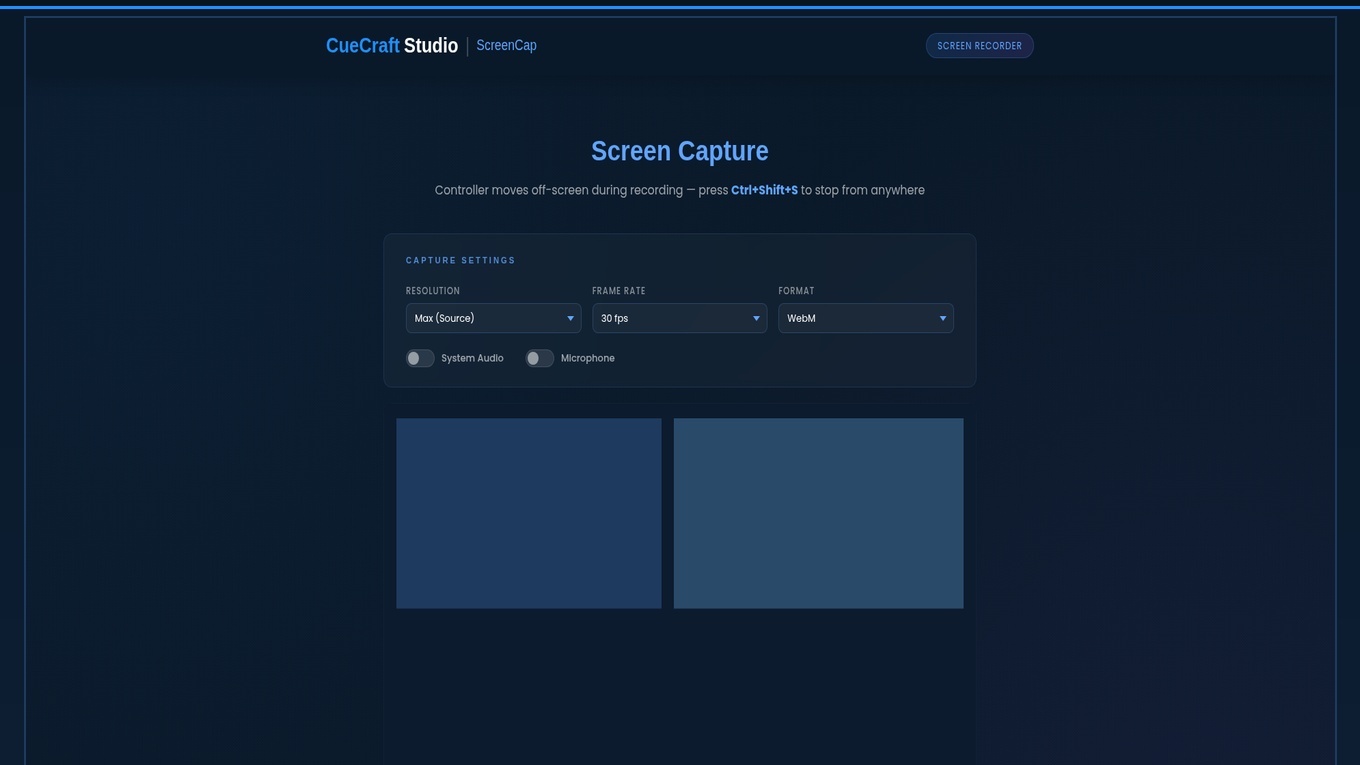
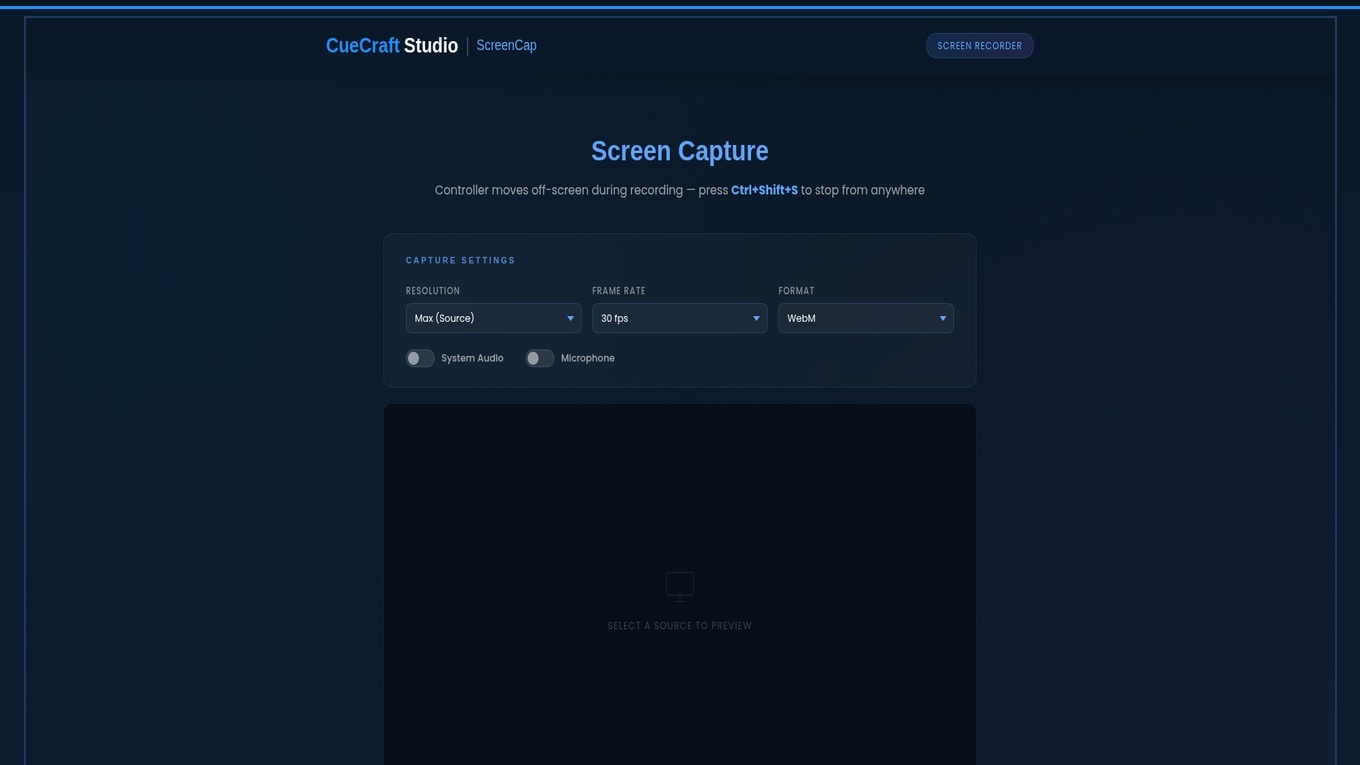
Key Features Live Preview — See exactly what you’re capturing before you hit record. No surprises. Precision Crop Tool — Click and drag to select any region of your screen. Perfect for cutting out the taskbar, notifications, or anything else you don’t want in the recording. Dual Monitor Support — Keep the controller on Monitor 2 and record Monitor 1 completely clean. Built-in step-by-step guidance for both dual and single monitor setups. Audio Mixing — Capture system audio, microphone, or both simultaneously with automatic mixing. MP4 & WebM Output — Records in your browser’s natively supported format for maximum compatibility. MP4 supported on Chrome 130+. Resolution & Frame Rate Control — Choose from 480p up to full source resolution, and 15, 30, or 60fps. Ctrl+Shift+S Global Hotkey — Stop recording at any time without needing to see or click the controller window. Invisible Controller — The control panel automatically shrinks to 1×1px and moves off-screen the moment you hit record. Nothing appears in your footage. Instant Save — Recordings appear immediately after stopping with filename, duration, file size, and one-click download. 100% Private — Nothing is uploaded anywhere, ever. All recording and processing happens locally in your browser. How It Works Open the HTML file in Chrome or Edge — no installation required. Click Launch ScreenCap — a control panel popup opens in a separate window. Click Source and pick the monitor or app window you want to record. A live preview confirms your selection. Optional: Click Crop and drag on the preview to select exactly the region you want recorded. Cuts out taskbars, notifications, or private content with pixel precision. Click Record — the controller shrinks off-screen and recording begins. Your screen is completely clean. Press Ctrl+Shift+S anywhere to stop — or bring back the window and click Stop. Your recording appears instantly, ready to download. Technical Details File Type: Single self-contained HTML file — no dependencies, no npm, no build step Browser Compatibility: Chrome 94+ and Edge 94+ (uses MediaRecorder + getDisplayMedia APIs) Output Formats: WebM (all browsers), MP4 (Chrome 130+ with hardware H.264) Resolution: Up to full source resolution (4K capable) Frame Rate: 15, 30, or 60 fps selectable Audio: System audio + microphone mixing via Web Audio API Crop Engine: Canvas-based crop stream using a hidden dedicated video element — smooth full-framerate crop recording Privacy: Zero network calls — 100% local browser processing File Size: Single HTML file under 100KB What’s Included cuecraft-screencap.html — the complete screen recorder Documentation PDF — setup guide, feature walkthrough, and tips README.txt — quick start instructions Why Choose CueCraft Studio ScreenCap? Most screen recorders require a full software install, a subscription, or upload your footage to the cloud. OBS is powerful but complex. Loom requires an account and uploads everything. Camtasia costs $299+.
CueCraft Studio ScreenCap is a single HTML file. You open it, record, and download. That’s it. It’s ideal for teams who need a simple tool they can share by email or USB, educators recording tutorials on locked-down school computers, developers who want zero dependencies, and anyone who values privacy and simplicity over bloat.
Changelog v1.0 — Initial Release
Full screen recording via getDisplayMedia API Precision drag-to-crop tool Dual and single monitor workflow guidance System audio + microphone mixing MP4 and WebM format support Invisible controller with Ctrl+Shift+S hotkey Instant recordings list with one-click download