- BuildCompanion — AI-Powered Prompt & Context Manager for Developers
Version 1.0.0 — Windows Desktop Application
- Overview
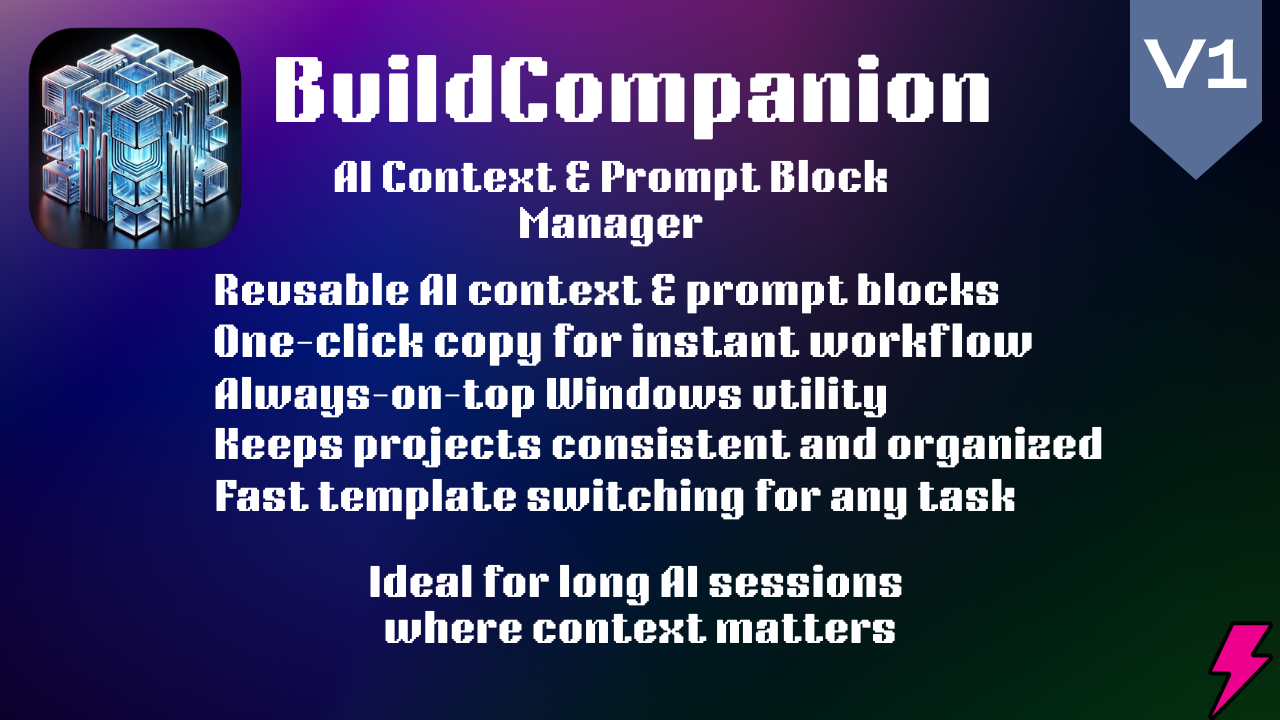
BuildCompanion is a powerful Windows desktop application designed to help developers organize, manage, and streamline AI prompts during software development. It works as an always-on-top utility that lets you create structured prompt “blocks,” categorize them, and instantly copy full context into any AI assistant such as ChatGPT, Claude, Gemini, or local AI models through Ollama.
Whether you’re building software, writing documentation, or managing multiple projects, BuildCompanion centralizes your context and boosts your AI productivity by eliminating copy-paste fatigue and ensuring consistent, high-quality AI interactions.
- Why BuildCompanion?
As a developer working with AI assistants, you know the struggle:
- Repetitive context sharing: You constantly copy-paste the same project info, tech stack, coding conventions, and task details into every AI conversation - Inconsistent results: Without proper context, AI responses are generic and miss your project’s specific requirements - Context fatigue: Manually assembling comprehensive prompts wastes valuable development time - Lost productivity: Switching between windows and files to gather context breaks your flow
BuildCompanion solves this by providing a lightweight, always-accessible overlay where you store reusable prompt blocks once and copy them with a single click—either individually or as a complete, well-formatted AI prompt.
- Key Features
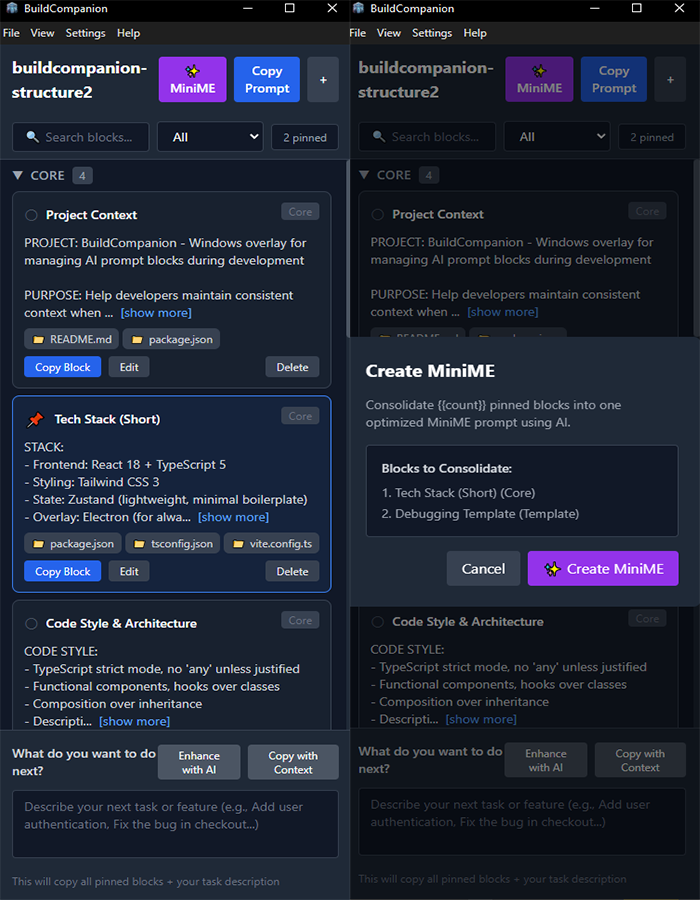
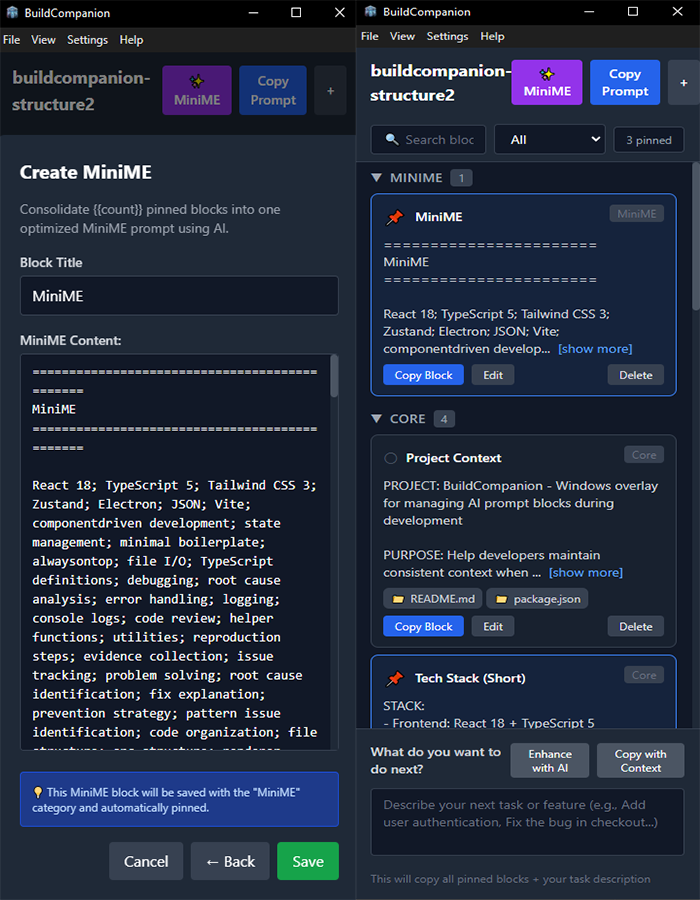
- Intelligent Block Management - Create unlimited prompt blocks with title, content, category, and optional file path references - Four category system: Core (project basics), Template (task structures), Contextual (conditional info), Reference (rarely used) - Pin/Unpin mechanism: Mark blocks as “always include” (pinned) or “copy when needed” (unpinned) - Smart search & filtering: Find blocks instantly by title/content, filter by category or pinned status - Visual status indicators: Pinned blocks have blue borders and filled pin icons; unpinned blocks have gray borders
- Powerful Copy Operations - Copy Single Block: Copy just one block’s content with optional file paths included - Copy Full Prompt: Assemble ALL pinned blocks into a professionally formatted, AI-ready prompt with clear section delimiters - Smart formatting: Blocks are automatically separated with headers and delimiters for maximum AI readability - One-click workflow: No manual assembly required—click and paste directly into your AI chat
- File Path Tracking - Attach file paths to blocks (e.g., `src/components/Block.tsx`, `package.json`, `README.md`) - Visual pill badges: File paths display as clickable badges under block content with folder icons - Individual path copying: Click any path pill to copy just that file path - Optional inclusion: Toggle whether file paths are included when copying block text - Lightweight memory aid: Helps you remember “where this block applies” in your codebase
- Always-On-Top Overlay - Floating window: Stays above all other applications for instant access while coding - Resizable & movable: Adjust size and position to fit your workflow—preferences are automatically saved - Minimal footprint: Compact, efficient UI designed for quick access without cluttering your screen - Persistent across sessions: Window size, position, and all settings persist between app restarts
- Keyboard Shortcuts - Ctrl+F: Focus search bar - Ctrl+N: Create new block - Ctrl+Shift+C: Copy full prompt (all pinned blocks) - Ctrl+P: Toggle “Pinned Only” view - Esc: Close modals/dialogs
- Modern, Intuitive UI - Clean design: Built with React 18 + Tailwind CSS for a modern, responsive interface - Dark/Light themes: Choose your preferred color scheme (theme setting included) - Collapsible categories: Collapse/expand category sections to focus on what you need - Visual feedback: Hover states, smooth animations, and clear action buttons - Accessibility: Keyboard navigable, semantic HTML structure
- Project-Based Structure System - Multiple projects: Create separate structures for different projects, each with its own blocks - Auto-save: All changes are automatically saved 500ms after modification (debounced) - Save/Load structures: Save your current block structure and load different ones for different projects - Import/Export blocks: Export selected blocks or import blocks from other structures - Portable JSON files: Share entire structures or individual blocks as JSON files - Separate config: App settings (theme, window position) stored separately from project blocks - No cloud required: All data stays local on your machine
- Perfect For
- Software Developers using ChatGPT, Claude, Gemini, or Ollama for coding assistance - Full-Stack Engineers managing multiple projects with different tech stacks - DevOps Engineers needing consistent context for infrastructure and deployment tasks - Technical Writers maintaining documentation with AI assistance - Students & Educators learning or teaching with AI-powered coding tools - Freelancers juggling multiple client projects with unique requirements
- Use Cases & Workflow Examples
- Example 1: Starting a New Feature 1. Pin your Project Context, Tech Stack, and Code Style blocks (core context) 2. Pin the Feature Implementation Template (task structure) 3. Click “Copy Full Prompt” 4. Paste into ChatGPT/Claude and describe your feature 5. Get highly relevant, context-aware code suggestions that match your project
- Example 2: Debugging Session 1. Keep core blocks pinned (project info, stack, conventions) 2. Pin the Debugging Template block 3. Add file paths to the debugging template (e.g., `src/api/client.ts`) 4. Copy full prompt and paste into AI chat 5. Get debugging help that understands your codebase structure
- Example 3: Quick Reference Lookup 1. Search for “API Integration” in the search bar 2. Find your API Standards block (unpinned, in “Contextual” category) 3. Click “Copy Block” to copy just that one reference 4. Paste into AI for quick guidance without full context overhead
- Example 4: Code Review 1. Pin Project Context and Code Review Template 2. Add file paths to the review template (files being reviewed) 3. Copy full prompt 4. Paste into AI along with code snippets for thorough review
- Technical Specifications
- System Requirements - Operating System: Windows 10 or Windows 11 (64-bit) - RAM: 2 GB minimum (4 GB recommended) - Disk Space: 150 MB for installation - Display: 1280×720 resolution or higher
- Technologies Used - Frontend: React 18.3 with TypeScript 5.7 - Styling: Tailwind CSS 3.4 - State Management: Zustand 5.0 (lightweight, performant state library) - Desktop Framework: Electron 34 (cross-platform desktop app framework) - Build Tool: Vite 5.4 (fast development and optimized production builds) - Internationalization: i18next 25.7 (multi-language support ready) - Storage: Local JSON file in Windows AppData directory
- Data Model & Schema
- Block Structure Each block contains: - ID: Unique identifier (UUID) - Title: Descriptive name (e.g., “Project Context”) - Content: The actual prompt text - Category: Core | Template | Contextual | Reference - Pinned: Boolean flag for inclusion in full prompt - File Paths: Array of related file paths (optional) - Timestamps: Creation and last update time - Order: Custom sort order within category
- Storage & Project Management
- How BuildCompanion Stores Data
BuildCompanion uses two separate storage systems:
1. App Configuration (` APPDATA /BuildCompanion/config.json`) - Stores app-wide settings: theme, language, window size, window position - Persists across all projects - Contains NO block data
2. Structure Files (User chooses location) - Each project gets its own structure file containing all blocks - Saved/loaded via File menu (Save Structure / Load Structure) - Can be stored anywhere: project folders, Documents, cloud sync folders - Easy to share with team members or backup
- Working with Multiple Projects
Create a New Structure 1. File → New Structure (or Ctrl+Alt+N) 2. Use the wizard to set up project details 3. File → Save Structure to save to your preferred location
Switch Between Projects 1. File → Load Structure 2. Select your project’s structure file 3. All blocks load instantly
Share Structures - Send structure JSON file to teammates - They load it with File → Load Structure - Everyone has identical context blocks
- Import/Export Individual Blocks
Export Blocks - Select specific blocks you want to share - File → Export Blocks - Choose save location - Share the exported JSON file
Import Blocks - File → Import Blocks - Select a blocks JSON file - Blocks merge into your current structure (no duplicates)
- Auto-Save Active structure auto-saves 500ms after any change (debounced). No manual saving needed.
- Example: Full Prompt Output
When you copy a full prompt with multiple pinned blocks, BuildCompanion generates:
```
AI CONTEXT – FULL PROMPT
PROJECT CONTEXT (Relevant files: README.md, package.json)
PROJECT: BuildCompanion – Windows overlay for managing AI prompt blocks PURPOSE: Help developers maintain consistent context when working with AI tools KEY FEATURES: [...] CURRENT PHASE: Active development
TECH STACK (SHORT) (Relevant files: package.json, tsconfig.json)
STACK: - Frontend: React 18 + TypeScript 5 - Styling: Tailwind CSS 3 - State: Zustand - Desktop: Electron - Build: Vite
CODE STYLE & ARCHITECTURE
CODE STYLE: - TypeScript strict mode - Functional components, hooks over classes - Descriptive names
ARCHITECTURE RULES: - Single responsibility principle - Keep components under 200 lines [...]
FEATURE IMPLEMENTATION
TASK: Implement [feature name] REQUIREMENTS: [...] APPROACH: [...]
============================================== END CONTEXT
```
This formatted output ensures AI assistants receive clear, structured context for optimal responses.
- Comparison: Before & After BuildCompanion
- Before (Manual Context Management) - Open README, copy project description → paste into ChatGPT - Open package.json, copy dependencies → paste into ChatGPT - Open style guide doc, copy conventions → paste into ChatGPT - Type out current task requirements manually - Result: 5-10 minutes per AI conversation, inconsistent context, copy-paste errors
- After (With BuildCompanion) - Click “Copy Full Prompt” button - Paste into ChatGPT - Result: 5 seconds, consistent context, zero errors
- Frequently Asked Questions (FAQ)
Q: Do I need an internet connection to use BuildCompanion? A: No. BuildCompanion runs entirely offline. All data is stored locally on your machine.
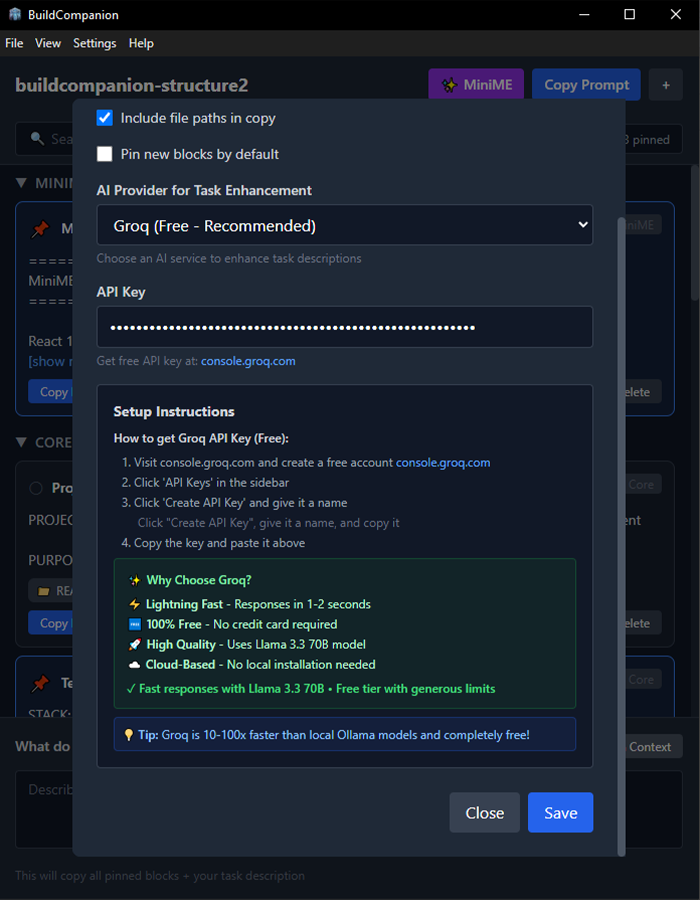
Q: Does BuildCompanion work with any AI assistant? A: Yes! It works with ChatGPT, Claude, Google Gemini, Ollama (local models), Copilot Chat, or any text-based AI interface. BuildCompanion simply copies formatted text to your clipboard.
Q: Can I use BuildCompanion for multiple projects? A: Yes! BuildCompanion supports multiple project structures. You can save your current block structure, create a new one, and switch between them using File → Save Structure and File → Load Structure. Each project has its own separate JSON file.
Q: Is my data secure? A: Yes. All data is stored locally on your Windows machine. App settings are in ` APPDATA /BuildCompanion/config.json`, and your project blocks are saved in structure files you control. No data is ever sent to external servers.
Q: Can I backup or export my blocks? A: Yes. You can save your entire structure to a JSON file (File → Save Structure) or export selected blocks (File → Export Blocks). These files can be backed up, shared with team members, or loaded on another machine.
Q: What happens if I accidentally delete a block? A: Currently, deletions are permanent. We recommend regularly saving your structure (File → Save Structure) to create backups. Undo/trash functionality is planned for future updates.
Q: Does BuildCompanion support macOS or Linux? A: Currently Windows only (x64). macOS and Linux versions are under consideration based on user demand.
Q: How do I report bugs or request features? A: Contact support via the provided support email after purchase. Include version number and detailed description.
- Changelog
- Version 1.0.0 (Initial Release) - Create, edit, delete prompt blocks with title, content, category - Pin/unpin mechanism for selective copying - Four-category system (Core, Template, Contextual, Reference) - File path tracking with visual pill badges - Copy single block or full prompt - Smart search and filtering - Always-on-top overlay window - Resizable, movable window with persistent positioning - Keyboard shortcuts (Ctrl+F, Ctrl+N, Ctrl+Shift+C, Ctrl+P, Esc) - Dark/Light theme support - Auto-save functionality (500ms debounce) - JSON-based local storage - Collapsible category sections - Modern React + TypeScript + Tailwind UI - Windows 10/11 support (x64)
- Support & Updates
- What’s Included - Lifetime License: One-time purchase, no subscriptions - Free Updates: All v1.x updates included (bug fixes, minor features) - Email Support: Technical support via email (response within 48 hours) - Documentation: Comprehensive user guide and README
- Support Scope - Installation assistance - Bug reports and fixes - Feature clarification - Configuration help
- Not Included - Custom development or feature requests (considered for roadmap) - Integration with proprietary systems - Training or consulting services
- How to Get Support 1. Check the included README.md for documentation 2. Email support with: – BuildCompanion version (Help → About) – Windows version – Detailed description of issue – Screenshots (if applicable)
- License & Terms
- License Type: Single User License (per purchase) - Usage: Install on up to 2 Windows devices per license (e.g., work PC + laptop) - Redistribution: Not permitted - Modifications: For personal use only - Commercial Use: Permitted (use BuildCompanion in your professional work) - Refunds: Available within 30 days if product doesn’t work as described
- Credits & Acknowledgments
BuildCompanion is developed by Alg4rvio.com using: - React (Meta Platforms, Inc.) - Electron (OpenJS Foundation) - Tailwind CSS (Tailwind Labs) - Zustand (Poimandres) - Vite (Evan You & team)
- Tags & Keywords
AI assistant, prompt management, developer tools, context manager, ChatGPT helper, Claude helper, productivity tool, Windows overlay, Electron app, development productivity, AI workflow, prompt blocks, context switcher, developer assistant, coding tools, AI prompts, Gemini helper, Ollama integration, React desktop app, developer utilities
- Get Started Today!
Stop wasting time manually assembling AI context. Start building smarter with BuildCompanion.
Download now and transform your AI-assisted development workflow.
Version: 1.0.0 File Size: ~150 MB (installer) Last Updated: December 2025 Compatibility: Windows 10, Windows 11 (x64) Category: Developer Tools → Productivity
- About the Developer
Developed by Alg4rvio.com — dedicated to creating productivity tools for modern developers. We build software that saves time, reduces friction, and enhances workflows.
For questions, custom development inquiries, or partnership opportunities, visit Alg4rvio.com.
Download BuildCompanion and supercharge your AI development workflow today!