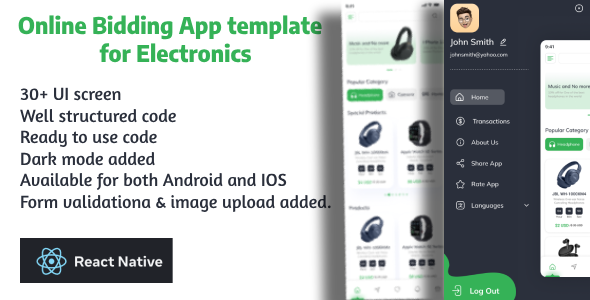
Auctioning and Bidding React Native App UI
Exclusive Offer for Buyers!Buy this mobile app theme and get a FREE Auction Website Template – a perfect match to boost your business!
✅ To claim your FREE bonus:
Purchase this app theme
Send your purchase code to us on WhatsApp +91 9624767583
Get instant access to the Auction Website Template
Preview the Website Theme Demo:Click here to view demoDon’t miss this limited-time offer – give your business a complete mobile + web solution today!1. Splash Screen
Design Elements:
A minimalist design with the app logo centered. Background could feature subtle animations, such as a gradient shift or a pattern that gently moves or fades. The app name is displayed beneath the logo with a short tagline. Purpose: Briefly introduces the app while loading the main content. Establishes the brand identity from the first interaction.
2. Onboarding Screens
Design Elements: Series of 3-4 screens with high-quality illustrations or images. Text descriptions explaining the app’s key features (e.g., “Easy Bidding,” “Real-Time Auctions,” “Secure Payments”). Each screen has a “Next” button and a “Skip” option at the top-right corner. A progress indicator (dots or a progress bar) at the bottom.
Purpose:
Introduce new users to the app’s core functionalities. Encourage users to create an account or log in after completing the onboarding.
3. Login & Registration Screens
Login Screen: Design Elements: Clean layout with inputs for Email and Password. “Login” button in a prominent color. “Forgot Password” link below the password input. Social login options (Google, Facebook, Apple) displayed with recognizable icons.
Features:
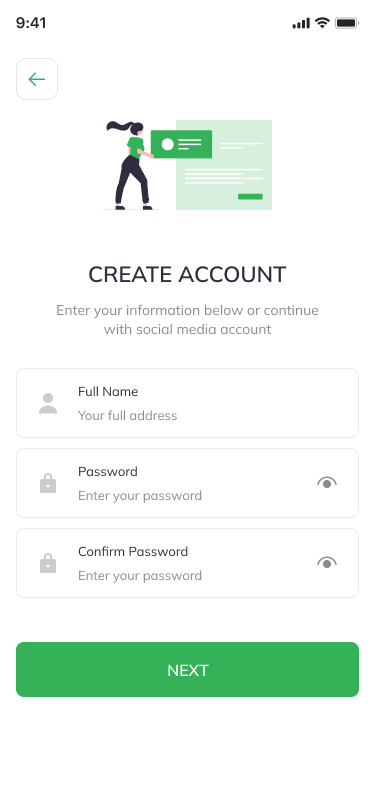
Error handling for incorrect credentials. Loading indicator while the login request is processed. Registration Screen: Design Elements: Fields for Name, Email, Password, and Confirm Password. “Sign Up” button with clear call-to-action. Option to switch to the Login screen at the bottom (e.g., “Already have an account? Login”).
Features:
Error handling for validation issues (e.g., weak password, email already registered). Loading indicator while the account is created.
4. Home Screen
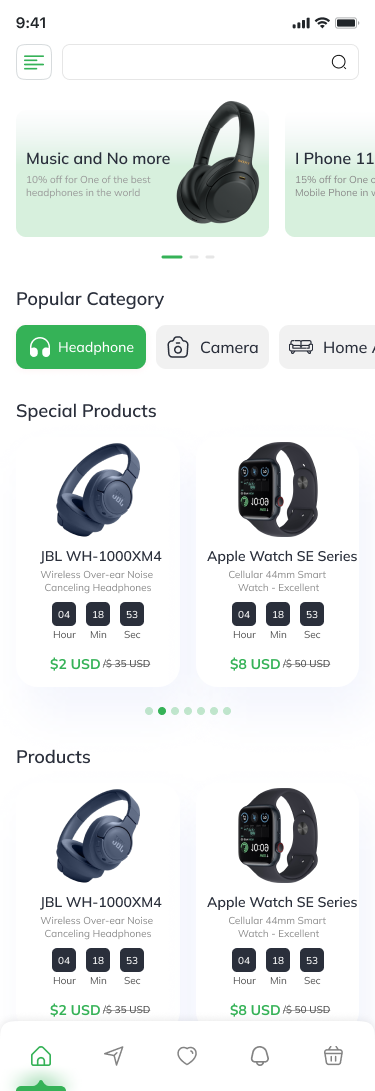
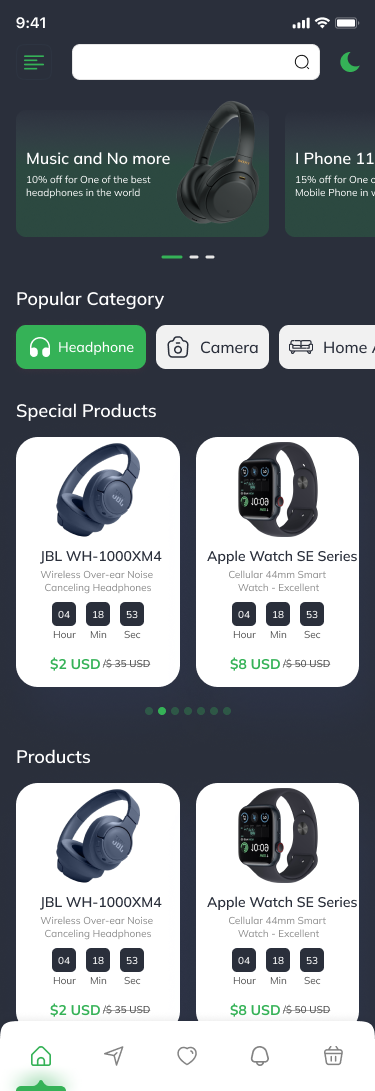
Design Elements: Header: Fixed header with a search bar and a menu icon for accessing the side drawer or profile settings. Categories: A horizontal scrollable list of categories (e.g., Electronics, Art, Fashion) with icons or images representing each category. Featured Auctions: A carousel of featured or trending auctions. Each item in the carousel shows a large image, item name, and current highest bid. Current Auctions: Below the featured section, a grid or list view of ongoing auctions. Each auction displays a thumbnail image, item name, current bid, and time remaining.
Features:
Search Functionality: Search bar allows users to search for specific items or categories. Filter & Sort Options: Filter auctions by category, price, or ending soonest. Sort results based on relevance, highest bid, etc. Real-Time Updates: Auction details (bids, time remaining) update in real-time.
5. Auction Detail Screen
Design Elements:
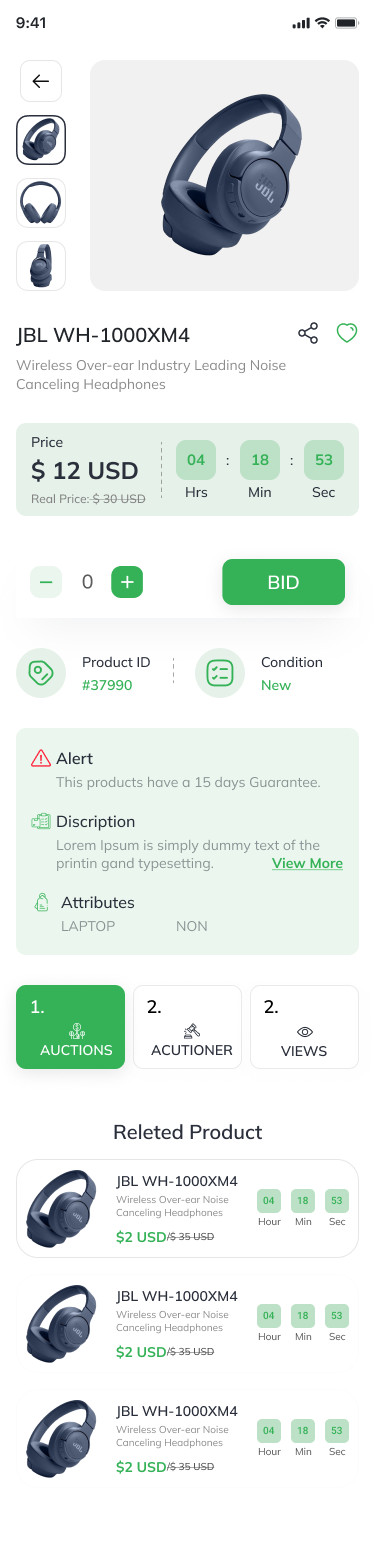
Image Carousel: Large images of the auction item with the ability to swipe through multiple photos. Item Information: Below the images, display the item’s name, current highest bid, starting price, and the number of bids placed. Description: A detailed description of the item including its condition, history, and any other relevant details. Seller Information: Section displaying seller details such as username, rating, and a link to view more items by this seller. Countdown Timer: Prominently displayed countdown timer showing the time left for the auction. Bid Button: A large, prominent button labeled “Place Bid” that opens a modal or new screen to enter a bid. Watchlist Button: A small icon/button to add the item to the user’s watchlist.
Features:
Bidding History: A list showing previous bids made on the item, with timestamps and usernames (partially masked for privacy). Real-Time Updates: The current bid and time remaining are updated in real-time without needing to refresh the screen. Similar Items: Carousel of similar items at the bottom to encourage users to explore more.
6. Bidding Screen
Design Elements: Bid Input Field: A simple text input where users can enter their bid amount. Current Bid Display: A clear display showing the current highest bid and the minimum amount required for the next bid. Confirm Bid Button: A prominent button labeled “Confirm Bid” with a confirmation modal for finalizing the bid. Bid History: A list of recent bids placed by other users, displayed in reverse chronological order.
Features:
Validation: Input validation to ensure the bid is higher than the current bid and meets the minimum increment. Real-Time Feedback: Instant feedback if another user places a higher bid while the user is entering their bid.
7. User Dashboard
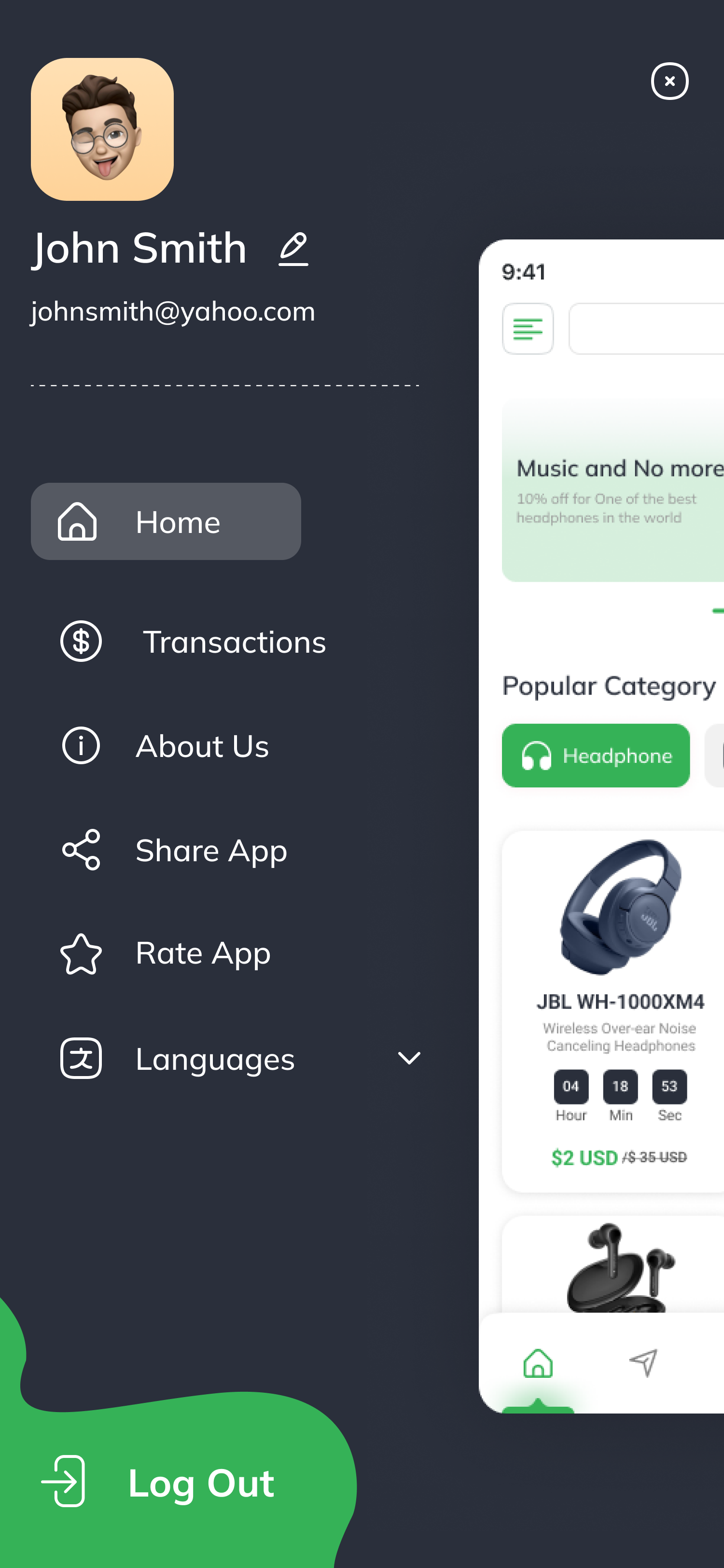
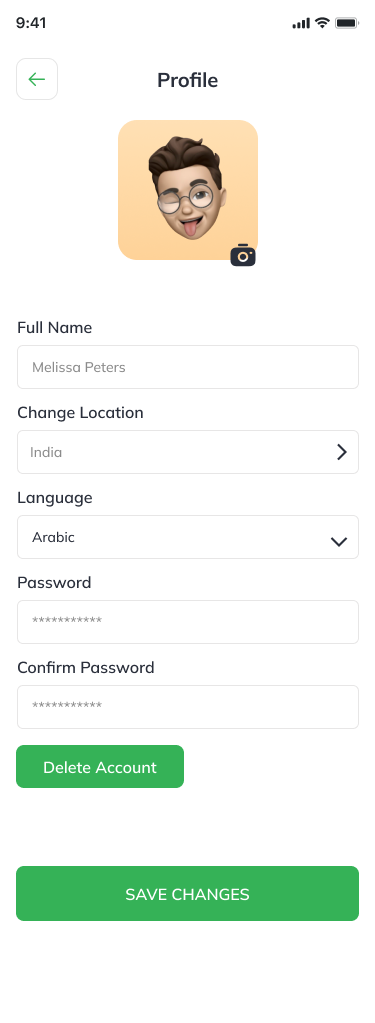
Design Elements: Profile Section: Displays the user’s avatar, name, and email at the top. Bidding History: A section listing all items the user has bid on, along with the status (e.g., won, lost, pending). Watchlist: A scrollable list of items the user is watching, with quick access to place a bid or view details. Payment Methods: Section where users can add, edit, or remove saved payment methods. Settings: Links to account settings, notification preferences, and other app settings.
Features:
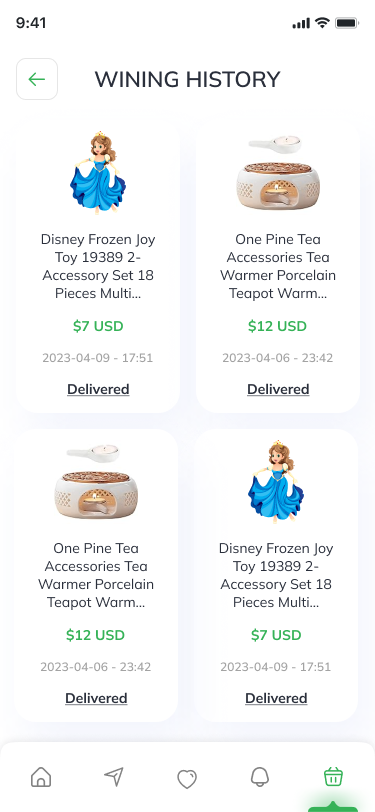
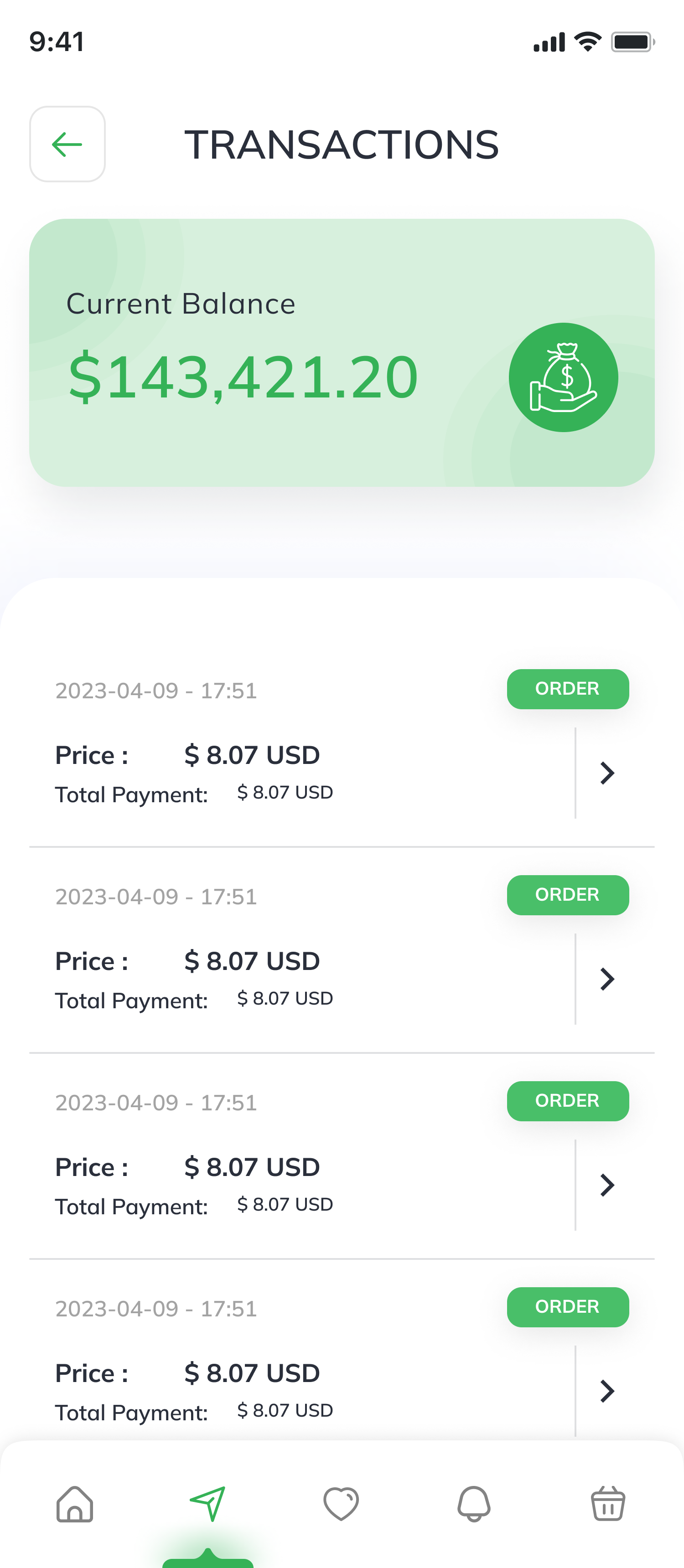
Order Management: View details of items won, including payment status and shipping information. Notifications: Manage notifications for bidding updates, auction results, and other important alerts.
Contact us
On demand complete solution available.
Whatsapp: +91 9624767583
Gmail: k29solutions@gmail.com
Skype: k29 solutions