A) Details – top
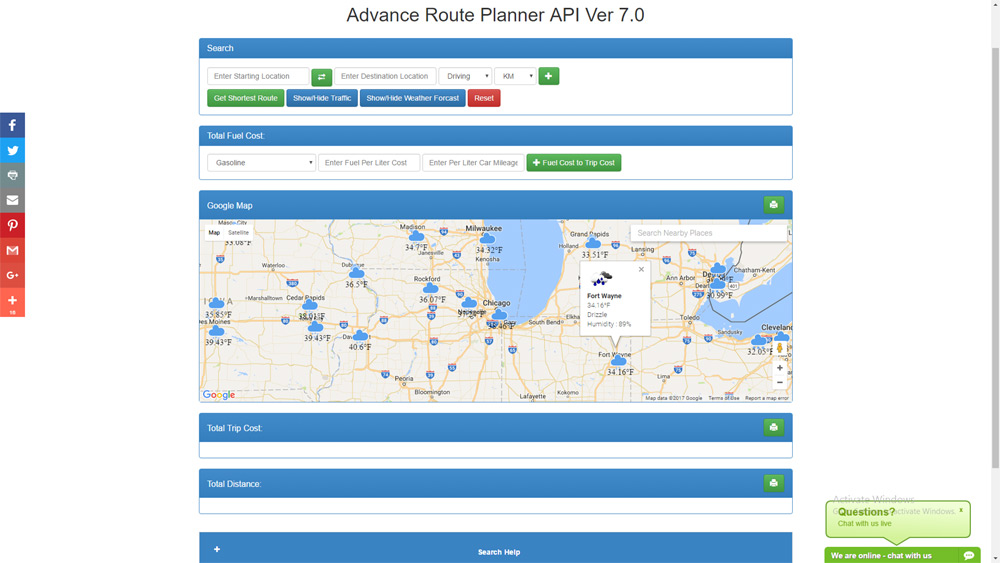
Advance Route Planner is a A to B RoutePlanner tool written in Pure Javascript with Google Map Ver. 3 API. it have very advance features like :
1) Added Weather layer on Google Map with OpenWeather APi
2) Added Transit Calculator
3) Added Place Search in all location textboxes.
4) Fixed Bugs.
5) Fuel Calculator.
6) Sorting of Locations.
7) Added Help Section.
Distance Unit Selection Added.
9) Optimized CSS, JS to minimize page load.
10) Traffic Layer Added.
11) Search Box for Nearby Location.
12) Auto Location Detection.
13) Added Google Nearby Places.
14) Now you can add multiple Waypoints
15) Get Shortest Route from Multiple Waypoints
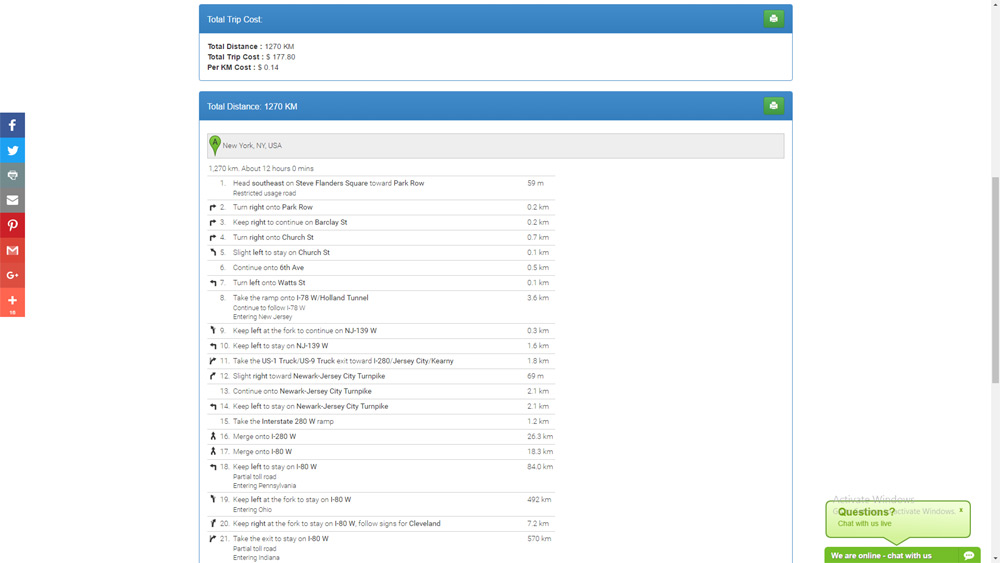
16) Get Trip / Tour Cost by Cost Calculator
17) Convert KM to Miles easily
18) Responsiveness.
19) Google Adsense.
20) Drag-able Route, adjust route as per your requirement.
21) Share able Link Generator.
22) Print button.
23) Change Google Map Language.
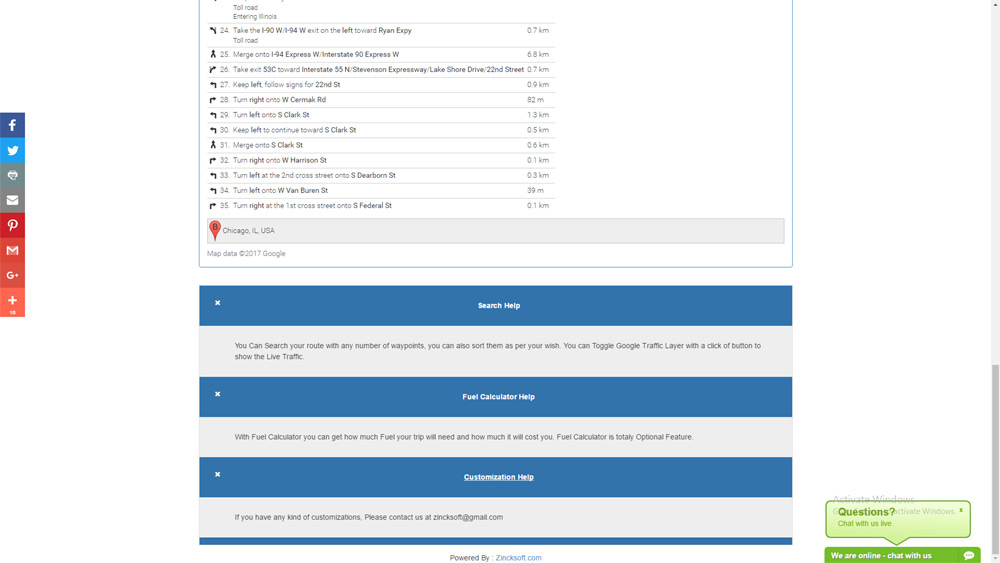
24) Fix your starting / ending point with ease and get proper Route Directions in details via Google API.
This tool can be easily attached to any existing Projects.
if you have any query you can contact us any time at my profile page or raise ticket.
How to Use – top
Extract all the files form the zip. The file you need to include Google API Javascript along with routeplannerapi.js.
If you wanted to install the plugin in your website please follow below after setting up above settings
include below libraries
<script src="https://maps.googleapis.com/maps/api/js?v=3.exp"></script>
<script type="text/javascript" src="https://maps.googleapis.com/maps/api/js?libraries=adsense"></script>
<script src="js/routeplannerapi.min.js"></script>
Set up Form, to get Starting and Ending Location and call calcRoute(); function on button submit as below :
<form class="form-inline" role="form">

<div class="form-group">
<label class="sr-only" for="start">Starting Location :</label>
<input type="text" class="form-control" id="start" placeholder="Enter Starting Location">
</div>

<div class="form-group">
<label class="sr-only" for="end">Destination Location :</label>
<input type="text" class="form-control" id="end" placeholder="Enter Destination Location">
</div>

<div class="form-group">
<select class="form-control" id="mode" name="mode">
<option value="DRIVING">Driving</option>
<option value="WALKING">Walking</option>
<option value="BICYCLING">Bicycling</option>
<option value="TRANSIT">Transit</option>
</select>
</div>

<button type="button" class="btn btn-success" onClick="calcRoute();">Get Route</button>
</form>
Add Google Map Div and Google Direction Div in the Page as below
<div id="map-canvas" />
<div id="directionsPanel" />
Thats it ! you are good to go if you want to do any changes please follow below instructions :
var _ZNRPL = {
latitude : 41.850033,
longitude : -87.6500523,
start:"",
end:"",
adsense:true,
publisherid:"ca-google-maps_apidocs",
adformat : "BANNER",
adposition : "RIGHT_BOTTOM",
adbackgroundColor: '#c4d4f3',
adborderColor: '#e5ecf9',
adtitleColor: '#0000cc',
adtextColor: '#000000',
adurlColor: '#009900'
};
You can set the variables, as per your requirement like below :
You can set your center location when page load by providing latitude and longitude of your location.
latitude : 41.850033,
longitude : -87.6500523,
You can setup your starting or ending location as below
start:"Chicago",
end : "New York",
You can enable or disable Google Adsense as below
adsense:true,
If adsense is enable you have to set your publisher id as below
publisherid:"ca-google-maps_apidocs",
If adsense is enable you have to set Type of Banner Format as below
adformat : "BANNER",
As per Google Adsense, Banner Format can be :
-
LEADERBOARDcreates a fully horizontal display area. -
BANNERcreates a horizontal “banner” ad. -
HALF_BANNERcreates a smaller horizontal “banner” ad. -
SKYSCRAPERcreates a large vertical ad. -
WIDE_SKYSCRAPERcreates a wide vertical ad using larger type. -
VERTICAL_BANNERcreates a medium-sized vertical ad. -
BUTTONcreates a small ad. -
SMALL_SQUAREcreates a slightly larger square ad. -
SQUAREcreates a large square ad with large type. -
SMALL_RECTANGLEcreates a small rectangular ad. -
MEDIUM_RECTANGLEcreates a medium rectangular ad. -
LARGE_RECTANGLEcreates a large rectangular ad. -
SMALL_VERTICAL_LINK_UNITcreates a small vertical link unit. -
MEDIUM_VERTICAL_LINK_UNITcreates a medium vertical link unit. -
LARGE_VERTICAL_LINK_UNITcreates a large vertical link unit. -
X_LARGE_VERTICAL_LINK_UNITcreates an extra large vertical link unit. -
SMALL_HORIZONTAL_LINK_UNITcreates a small horizontal link unit. -
LARGE_HORIZONTAL_LINK_UNITcreates a large horizontal link unit.
If adsense is enable you have to set Position of Banner as below
adposition : "RIGHT_BOTTOM",
As per Google Adsense, Banner Position can be :
-
TOP_CENTERindicates that the adunit should be placed along the top center of the map. -
TOP_LEFTindicates that the adunit should be placed along the top left of the map, with any sub-elements of the control “flowing” towards the top center. -
TOP_RIGHTindicates that the adunit should be placed along the top right of the map, with any sub-elements of the control “flowing” towards the top center. -
LEFT_TOPindicates that the adunit should be placed along the top left of the map, but below anyTOP_LEFTelements. -
RIGHT_TOPindicates that the adunit should be placed along the top right of the map, but below anyTOP_RIGHTelements. -
LEFT_CENTERindicates that the adunit should be placed along the left side of the map, centered between theTOP_LEFTandBOTTOM_LEFTpositions. -
RIGHT_CENTERindicates that the adunit should be placed along the right side of the map, centered between theTOP_RIGHTandBOTTOM_RIGHTpositions. -
LEFT_BOTTOMindicates that the adunit should be placed along the bottom left of the map, but above anyBOTTOM_LEFTelements. -
RIGHT_BOTTOMindicates that the adunit should be placed along the bottom right of the map, but above anyBOTTOM_RIGHTelements. -
BOTTOM_CENTERindicates that the adunit should be placed along the bottom center of the map. -
BOTTOM_LEFTindicates that the adunit should be placed along the bottom left of the map, with any sub-elements of the control “flowing” towards the bottom center. -
BOTTOM_RIGHTindicates that the adunit should be placed along the bottom right of the map, with any sub-elements of the control “flowing” towards the bottom center.
If adsense is enable you have to set Colors Scheme of Banner as below in hex format
adbackgroundColor: '#c4d4f3',
adborderColor: '#e5ecf9',
adtitleColor: '#0000cc',
adtextColor: '#000000',
adurlColor: '#009900'